
October 2026 Update: Cloud Inventory, Scheduled Testing and Investigation Replay
The October 2026 update connects cloud inventory, schedules testing windows, replays investigations, and expands mobile scanning and fix verification.
Watch the October 31 update
Watch the 77-second overview with an actual scan-setup recording, product demonstrations and interface close-ups, music, and English captions. The recorded product interface is in English.
Download the video · Read the transcript
Free web and source-code scans, a clearer scan-creation flow, and more ways to bring applications into testing lead this October follow-up. Cloud inventory, execution windows, investigation replay and backlog assignment connect discovery, testing and remediation.
Following the October 17 update on Ticket Agents and tested fixes, this update adds private TestFlight access, Appcircle build integration and Active Directory assessments. It also restores asset-import and discovery-onboarding workflows and makes Ticket Agents easier to configure.
Free scanning for websites, source code and mobile app vetting
Free scanning now covers a website URL, source code and mobile app cards. Teams can start with Fast Web Scan or Source Code Fast Scan without the corresponding paid plan, while free App Vetting provides a shared app verdict. Each has its own quota and reporting limits.
Fast Web Scan
Launch Fast Web Scan from the dashboard or the public website. Organizations without a paid web plan receive five scans per 24 hours through the UI. It checks one URL with a deliberately narrower configuration and lightweight checks, including crawling, technology identification, certificate inspection and exposed-secret detection. It does not consume a paid web-plan slot.
Source Code Fast Scan
Source Code Fast Scan is available for connected repositories and uploaded archives without a repository plan, with five scans per 24 hours. Visitors without an account can submit an email address and a ZIP on the public website; public ZIP uploads are limited to 50 MB. Existing account holders sign in to run their scans, and repository connections are configured in the console.
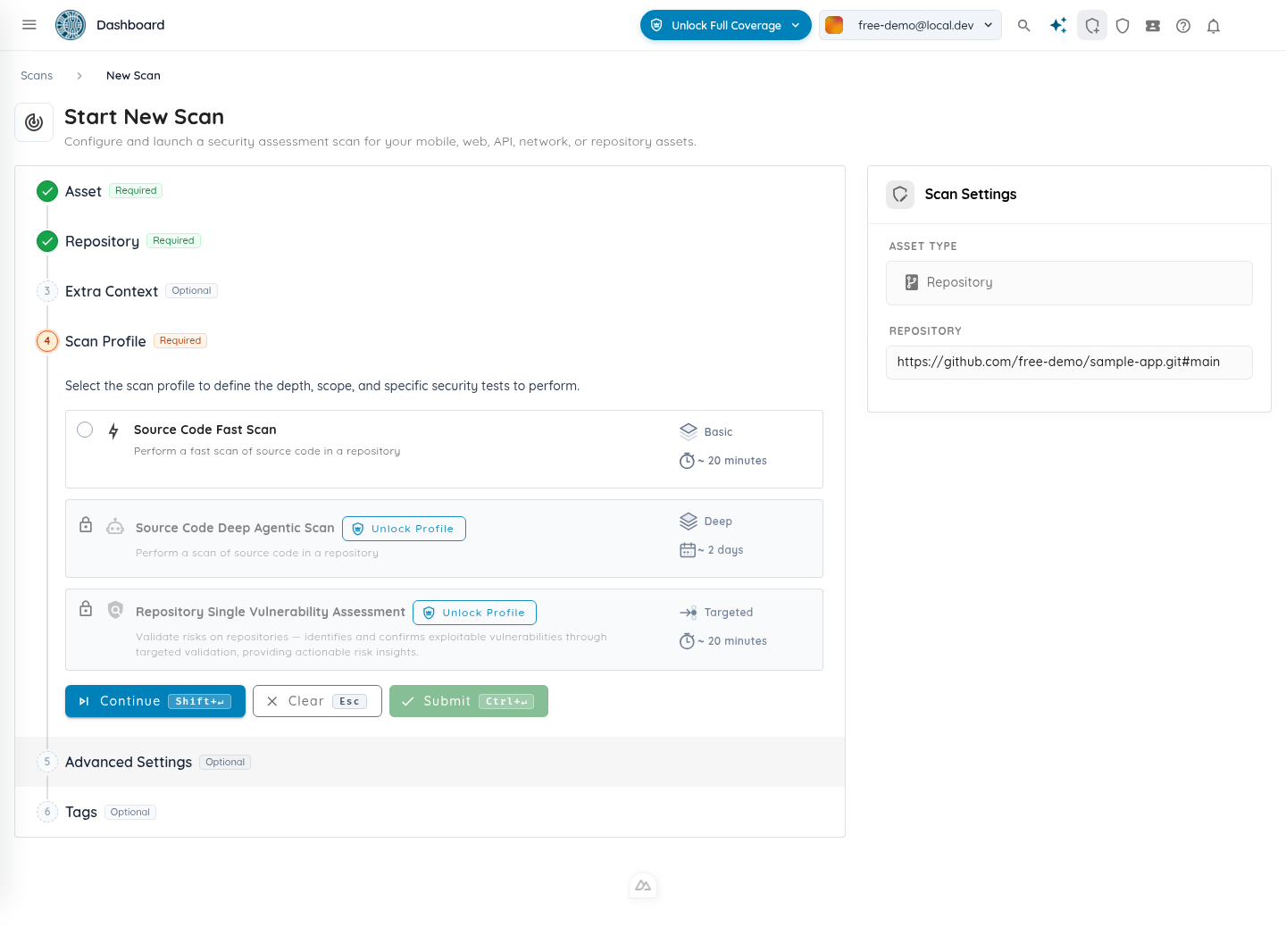
Source Code Fast Scan is available without a repository plan. Actual application screenshot with demonstration data.
Free App Vetting
Free organizations receive five app-card requests per rolling 24 hours. Adding an already scored app to monitoring counts as a request; reopening a card already monitored by the organization does not. Removing a newly added card does not reset that day's quota. Full scan reports remain a paid feature.
A clearer scan setup, from target to Start
Scan creation now keeps the Start panel visible beside the form, or docked at the bottom on smaller screens. The panel summarizes the target and profile, lists what is missing, and takes you to the step that needs attention. Failed creation keeps your inputs so you can correct the problem and retry.
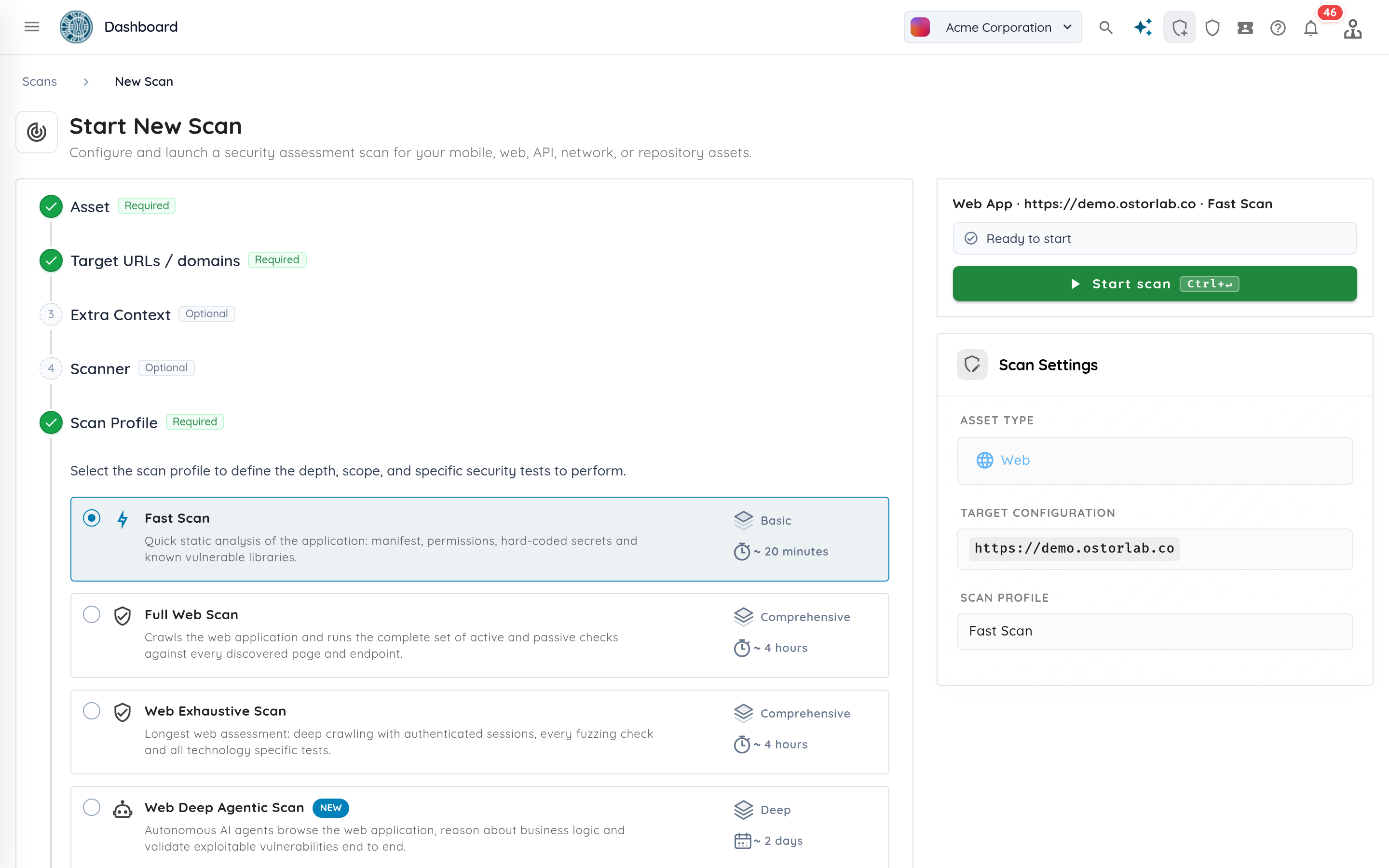
The Start panel keeps readiness and the launch action beside the scan settings. Demonstration data.
Uploads now show a progress bar, percentage and transferred size, then distinguish upload completion from scan creation. This applies to mobile application files, repository archives, API schemas, SBOMs and multi-asset uploads. Scanner groups with no scanners cannot be selected.
Scan details expose the vulnerability-scope whitelist and blocked IPs. Rescans preserve scope whitelists, and network rescans retain custom prompts and guardrail instructions. Plain Enter and Escape keep their normal keyboard behavior instead of unexpectedly advancing or clearing the form.
Bring cloud resources into inventory
Cloud connectors bring internet-facing resources from AWS, Google Cloud and Azure into Ostorlab inventory. Configure a connector, synchronize it manually or on a schedule, and inspect its synchronization history.
Supported Model Context Protocol (MCP) operations also let automation manage connectors and trigger or check synchronization. When a resource disappears from the connected cloud, the corresponding removed target is skipped during scanning.
Asset-import and onboarding fixes restore two existing workflows: CSV imports load rows for validation and confirmation in production, and organizations with an empty inventory can reach the AI Seed Generator. Confirming its selected domains now creates the assets and returns to the inventory view.
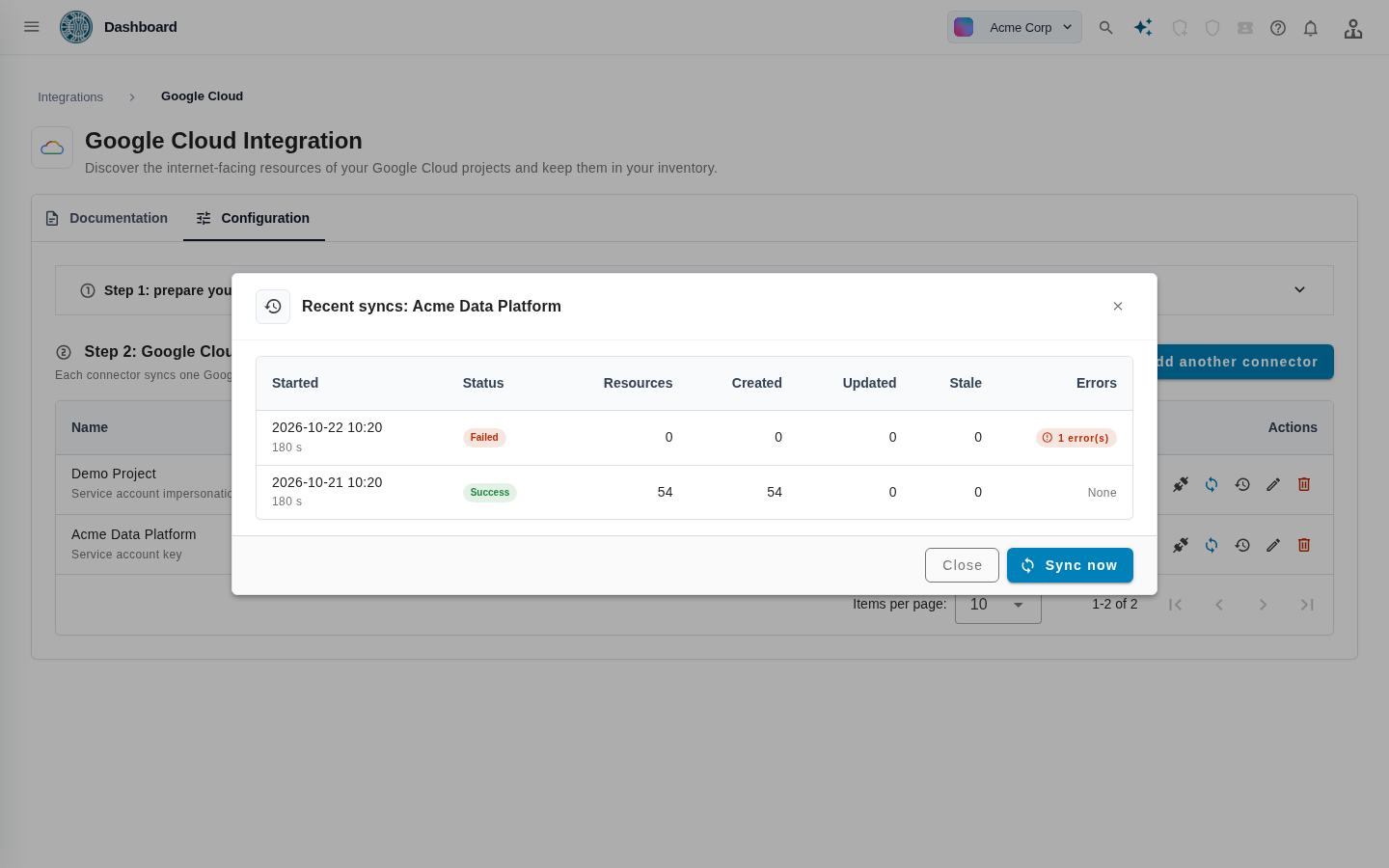
A connector’s sync history shows discovered resources and run outcomes. Demonstration data.
Example workflow. Target selection and assessment scheduling are manual steps.
Run assessments within permitted hours
Execution windows define the hours, weekdays and timezone in which a scan may run. A pausable scan waits outside its window and resumes during the next one, preserving its state. Scans that cannot be paused continue until they finish. Manual pause and resume give operators another control, and an explicit manual pause is preserved when a scheduled window opens.
Choose a suggested window or define your own, including a window that crosses midnight. A recurring schedule determines when to launch assessments; an execution window determines when an assessment is allowed to continue working.
Windows can also be supplied through supported MCP and Copilot scan-creation operations. Rescans preserve the original window, and Verify Fix can reuse it, so follow-up testing can respect the same permitted hours as the initial assessment.
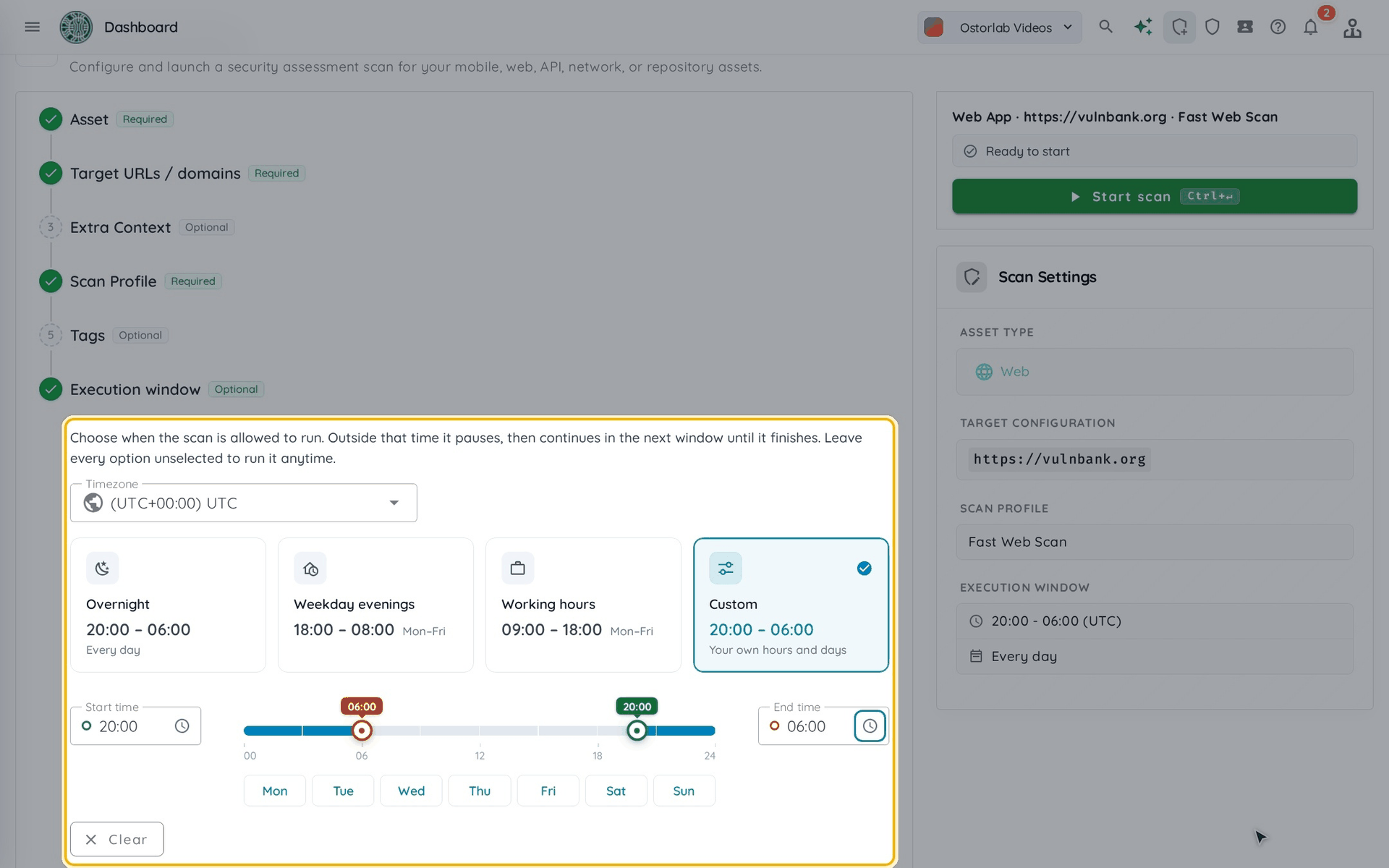
The actual execution-window controls from the documentation, using a demonstration target. Choose a preset or set your own hours and days.
Follow the evidence through an investigation
A unified timeline brings screenshots, HTTP traffic, instrumentation and device logs into chronological order. The investigation views connect these events with agent actions and the evolving picture of a target. Reasoning replay shows tasks and tool activity, while architecture replay lets reviewers inspect earlier observed states.
The timeline supports source filters, a time-window selector, nearby events and session replay.
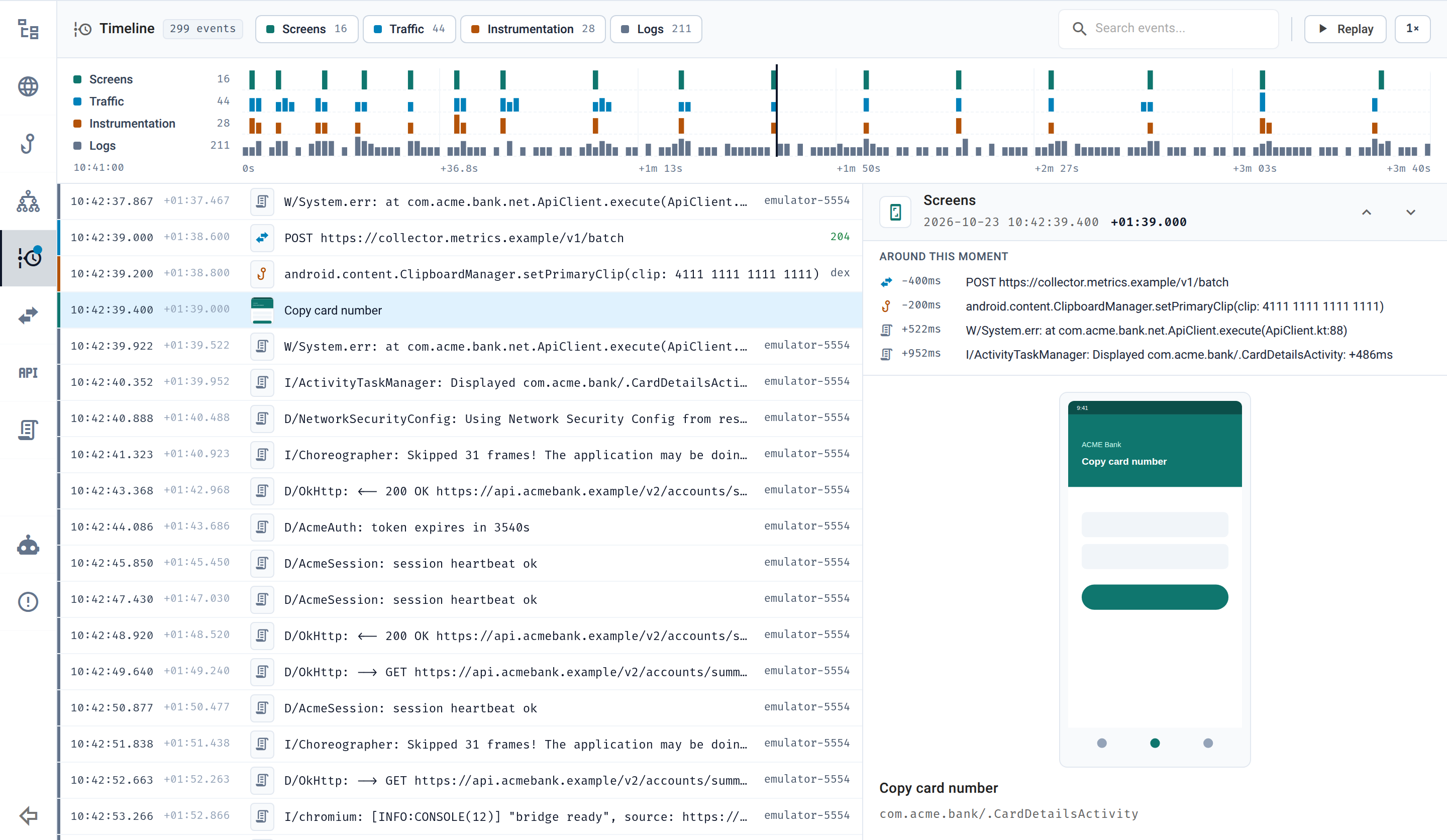
The actual investigation interface, shown with synthetic demonstration data.
Reasoning replay loads the outline first and retrieves heavier tool output in the background. Commands, output and screenshots appear alongside the current task, helping reviewers follow the steps that produced the evidence.
The architecture view displays observed nodes, links, events and associated evidence. Historical replay preserves earlier states when later observations correct or retract information.
Mobile Full Scan overview
Mobile scan overviews also bring severity counts, the executive summary and attack-surface context together. In Full Scan, the explorer groups backend locations, permissions and exposed mobile components. This attack-surface explorer is limited to Full Scan in this update.
Scan private TestFlight applications
Private TestFlight lets an organization scan an approved iOS application by name, without a public invitation link. Request access from scan creation or the private-app inventory, then invite Ostorlab as an external tester. The application becomes selectable after its invitation is accepted and access is enabled.
In the TestFlight scan form, choose Private to select an enabled application. Request another app from the form or from Inventory → Private TestFlight Apps, where enabled apps and pending requests are listed. The request requires an external-tester invitation and staff acceptance before the app can be scanned. Supported MCP and Copilot operations accept the private application name as well.
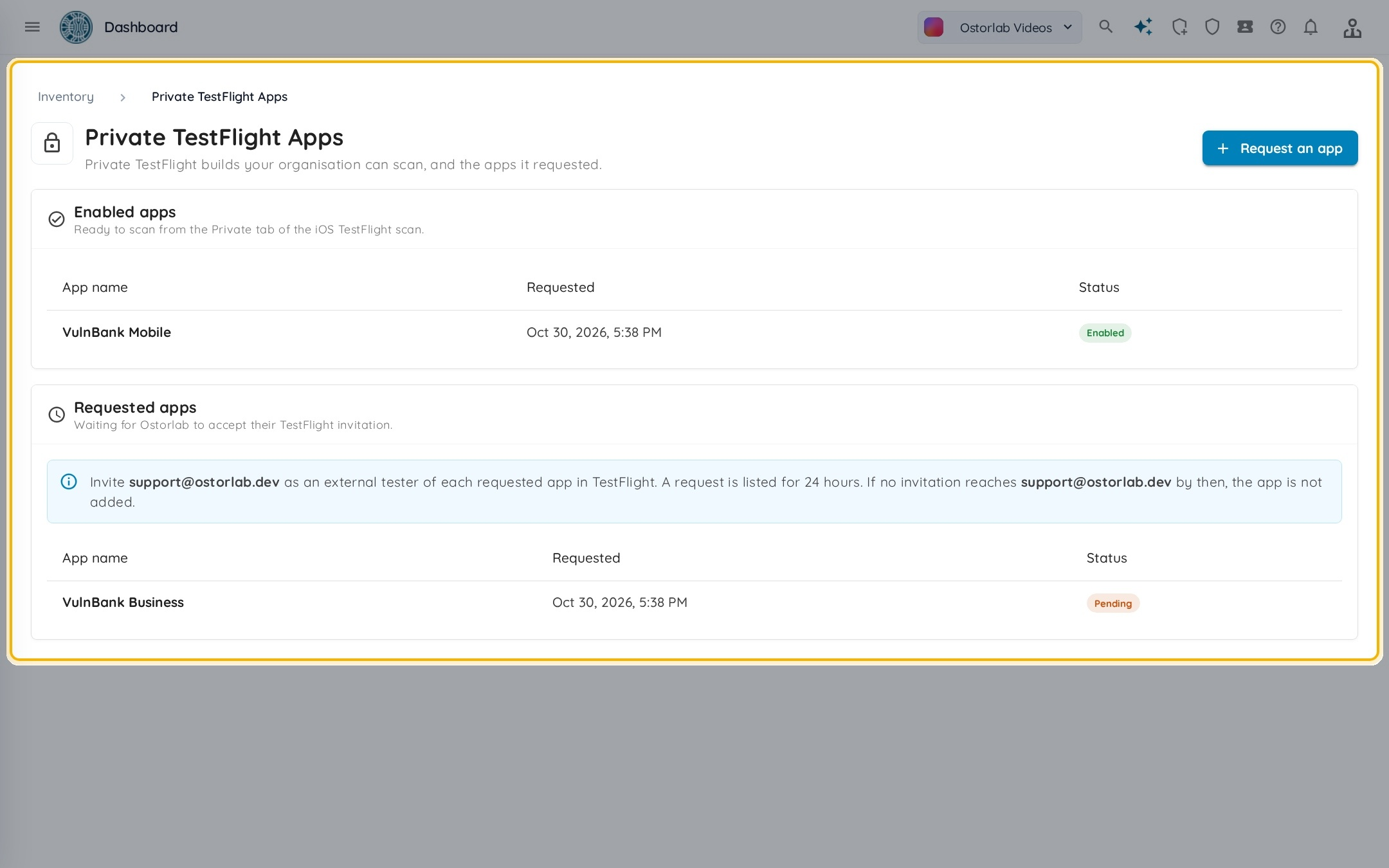
The private-app inventory distinguishes applications ready to scan from pending requests. Documentation screenshot with demonstration apps.
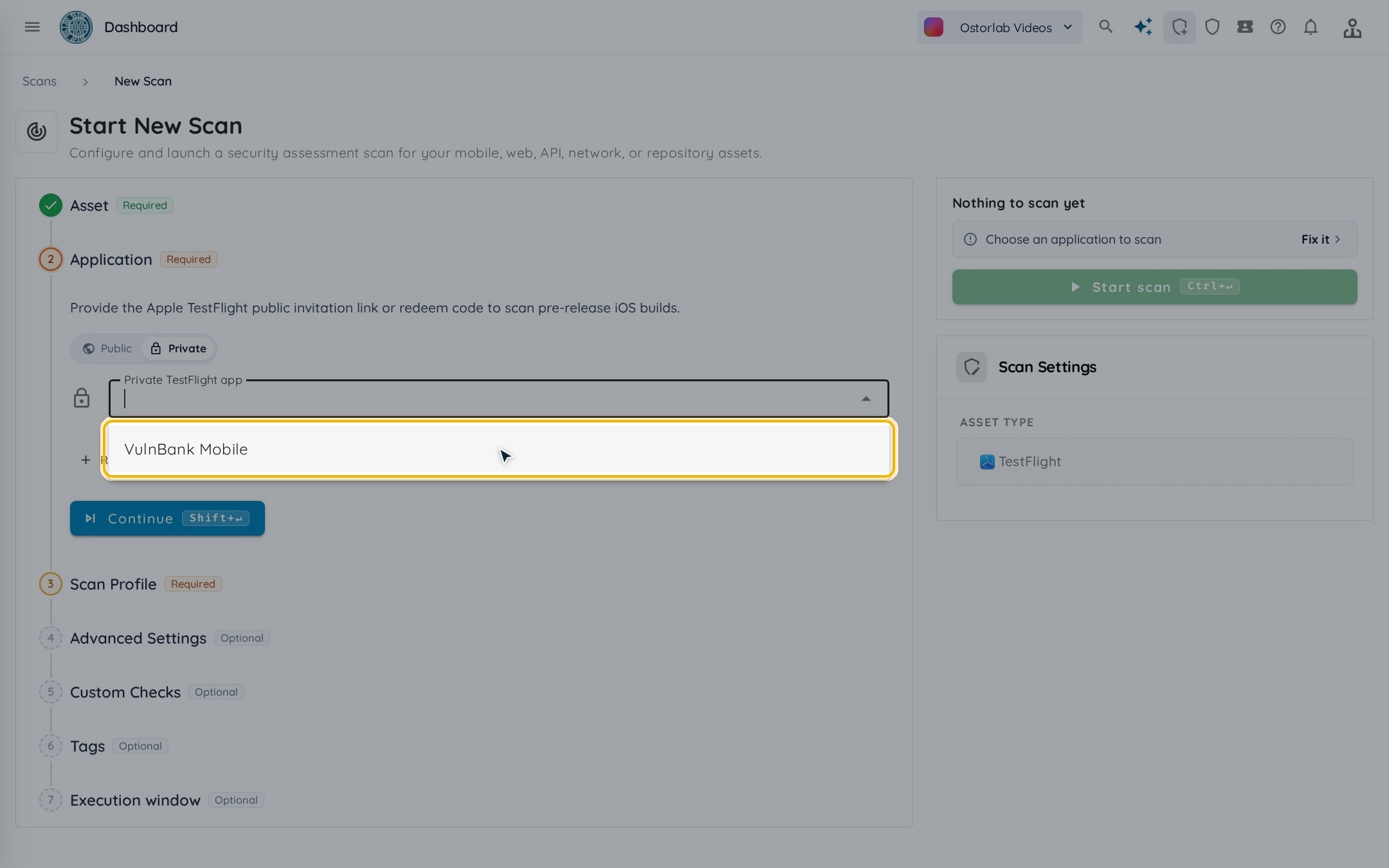
Choose an enabled application from the Private tab when creating a TestFlight scan.
Scan successful Appcircle builds automatically
Appcircle integration connects successful mobile builds to Ostorlab scans and records each delivery's outcome. It supports Appcircle cloud and self-hosted installations, with Fast Scan, Full Scan and Privacy Scan profiles. When a build exports both Android and iOS applications, Ostorlab starts a separate scan for each.
Choose a build profile, scan profile, and—where supported—UI rules and test credentials. Test the saved connection before using the webhook. A configuration can be enabled or disabled without recreating it; its delivery history distinguishes scanned, skipped, rejected and error outcomes.

An Appcircle configuration connects a build profile to a scan profile. Screenshot from the integration guide.
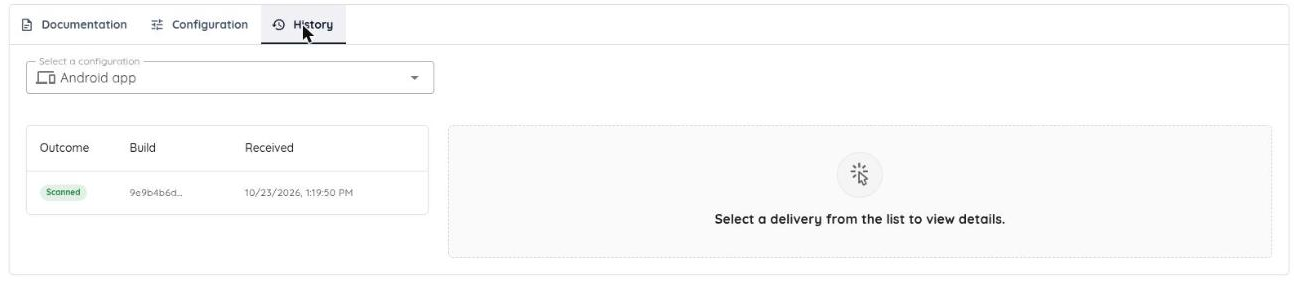
Delivery history shows whether each build produced a scan. The detail view explains skips, rejections and errors.
Move a backlog through fixing and verification
Ticket Agents now support batch assignment of eligible backlog tickets, and new presets guide vulnerability fixing and fix verification. Bulk Verify Fix combines selected vulnerabilities into one assessment and one report, requesting a separate verdict for each.
Select open or reopened, unassigned tickets from the current filtered backlog and assign them to an agent. Assignment progress and retries make partial failures visible. A warning identifies agents without an enabled assignment rule, so a batch is not mistaken for a configured automation workflow.
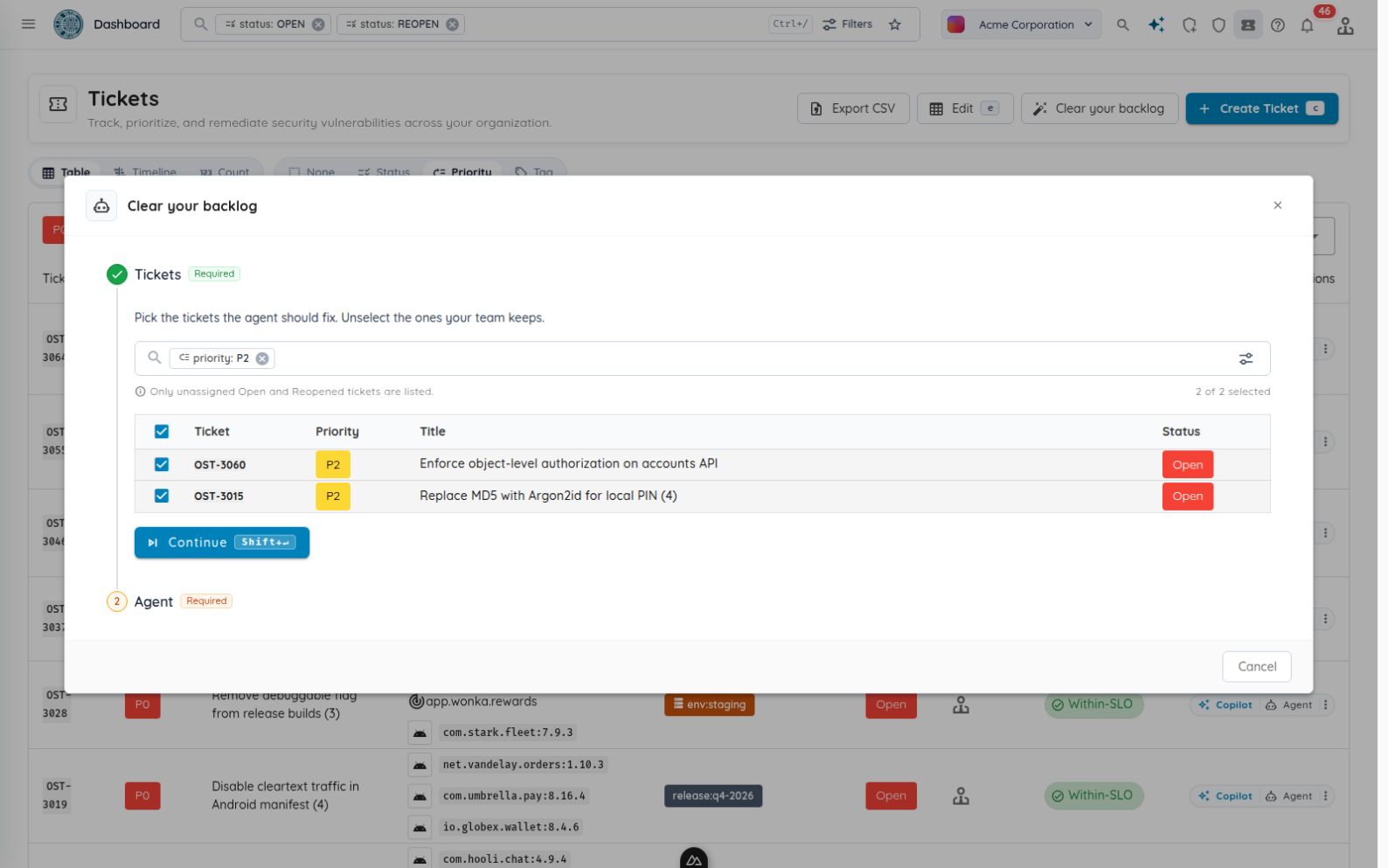
Select the eligible tickets, then choose the Ticket Agent that should work on them. Actual application with synthetic demonstration tickets.
Ticket Agent setup is shorter too: Create Agent becomes available once the required details and model are set, and optional memory, skills and MCP settings can be completed later. A summary checklist shows what remains. One-click trigger presets create enabled rules for ticket creation, assignment or SLO breaches; these are separate from the disabled starter rules in the fixing and verification templates.
Clone a custom AI agent from its card or detail page to open a prefilled creation form. The copy retains its role, instructions, model, memory, skills and MCP connections. Copied rules are independent and start disabled; memory, skills and MCP connections remain shared resources. Review the form before creating the new agent.
The Vulnerability Fixing and Fix Verification presets join the existing templates. Fixing instructions guide patch preparation, regression tests and a draft pull request; verification instructions guide independent retesting and evidence recording. Each preset includes initial ticket-assignment rules that remain disabled until reviewed. Repository access and MCP tools must be configured before execution.
The Runs tab links executions to tickets and exposes status, timestamps, sanitized error messages and contextual reports. Prompts and skills can be read in formatted or source views, with copy controls and source details for GitHub skills.
For verification, select vulnerabilities in the scan table and choose Verify Fixes. The selection starts one Single Vulnerability Assessment with a prompt requesting a verdict per vulnerability. The assessment uses the first target as its risk link; additional hosts are carried in the prompt.
A finding's new Tickets tab shows linked tickets, descriptions and comments. Stream-scoped bulk editing and ticket-key lookup help navigate larger queues. The remediation timeline can also center directly on a selected stream without opening it. Save actions in the editor now preserve concurrent changes and unsent comments, submit only changed fields, and prevent duplicate saves. Marking a ticket fixed restores the verification prompt.
Active Directory and network assessments
Active Directory assessment is now enabled in scan creation. Directory testing covers enumeration, certificate services, trusts and access controls, with credential-aware follow-up, lateral-movement planning and lockout-aware testing. Network Deep Agentic scans—including Active Directory—now expose custom prompts, and network rescans preserve those prompts and guardrail instructions.
Authenticated MSSQL investigation also adds read-only baseline checks for login and server roles, database trust settings, linked servers, server version and whether xp_cmdshell is enabled.
Web authentication and dedicated chatbot assessments
Web authentication supports email one-time codes and TOTP, extending the login flows agents can complete during testing. Authenticated sessions can be reused across links and replicas, with improved page-stability handling and login recovery. Dedicated chatbot assessments add focused planning for prompt injection, excessive agency, data disclosure and safety bypasses.
Chatbot checks take country and language context into account and can examine content-policy behavior. They are security assessments, not certifications of legal compliance.
More coverage and fewer review distractions
Assessment coverage expands across authenticated web applications, chatbots, source code and exposed infrastructure. Discovery and analysis changes help collect relevant evidence, while targeted false-positive fixes reduce specific sources of noise. The table below separates new testing capabilities from compatibility improvements and changes to how findings are interpreted.
| Area | What changed |
|---|---|
| Source investigation | OpenGrep inspection and bidirectional source/AST lookup help agents trace suspected issues to their causes and follow their effects. |
| Exposure checks | Additional advisory checks cover PHP, Node2Shell and products including HPE networking, LiteLLM, Collabora and Okta. Passive and version-based signals indicate exposure; they do not establish successful exploitation. |
| Finding accuracy | Targeted fixes reduce incorrect Rust advisory matches against native C++ libraries, and noise around public Firebase values, iOS sandbox permissions, Apple frameworks, hosted email authentication and dangling-IP inference. Aggregated same-title findings retain the highest severity. |
| Asset discovery | Domain selection prioritizes never-scanned and least-recently-scanned targets and records scan history. Nightly discovery checks the top 1,000 ports, collects sitemap pages, and gives larger targets more processing allowance and sampling. |
| ASN targets | Autonomous System Numbers are supported as inventory and scanning targets through API/CLI workflows, including OXO, the open-source security-scanning CLI. |
| Mobile compatibility | Android traffic-capture work adds WireGuard/TCP support and on-demand scanner tunnels. Flutter 3.44/3.47 support, native analysis when Dart classes are unavailable, and improved large or fat-binary iOS downloading and decryption broaden compatibility. |
Smaller changes across access, automation and daily work
Additional updates cover billing, audit review, automation and everyday navigation.
| Area | What changed |
|---|---|
| Checkout and wallet | Monthly AppSec subscriptions and one-time Agentic Pentest purchases have separate carts. Quantity controls, purchase feedback, ledger filters and balance history improve, with fractional token amounts preserved in balances, refunds and settlement. |
| Security posture API | Read-only security_auditor keys and organisationSecurity queries expose authentication settings, members/MFA, groups, roles, API-key metadata, invitations, shared links and integration summaries without returning secrets. |
| Audit and access | Audit coverage includes explicit evidence downloads, exports and human approval decisions, with organization attribution for login/logout and collection of API-key last use. Expired MCP keys are rejected, email-2FA passwords are masked, and public scan responses expose fewer fields. |
| MCP operations | New operations support ticket counting, compact pagination, batch alert acknowledgement and global vulnerability lookup. Triggering a Ticket Agent from a comment requires explicit opt-in. |
| Local OXO workflows | Local scans can pause and resume from persisted snapshots. Logout is supported, and rejected saved sessions fall back to the public store. |
| Investigation workspace | Filename search and exact DEX class/source/smali navigation improve, alongside call-stack pagination, translated replay step titles and outcomes for organizations with translation access and loading states. |
| Triage and notifications | Scan-page ticket and coverage queries avoid unused SLO calculations. Third-party finding locations are clearer, ticket-status filters persist in scan URLs, and scan lists offer smaller page sizes. Errors are more readable, result-email subjects name the asset, and webhook destination, redirect and completion-delivery handling improve. |
Open the Ostorlab console to review the integrations, assessment settings and remediation tools available to your organization.