
New Dashboard UI, On-Premises Scanner, Agentic Scan Knowledge, Multi-Asset Scanning, Linear & MCP Integrations, and New Model Support
This release adds a redesigned Dashboard UI (Cockpit, Focus Mode, and Custom Dashboards), keyboard shortcuts for ticket management, an on-premises vulnerability scanner for internal networks, persistent scan knowledge across runs, an MCP server for AI tools, multi-asset scanning, remediation streams with timeline tracking, Threat Center EUVD intelligence, and expanded AI model support.
Most software projects include a mix of mobile apps, web interfaces, backend APIs, and source code repositories. Running separate security tools for each piece usually means repeated setup, lost context between scans, and extra work tracking fixes.
The September 2026 release brings these parts together. It adds persistent memory across scans, on-premises scanners for internal networks, unified multi-asset testing, direct IDE integration through the Model Context Protocol (MCP), and a faster, cleaner dashboard.
Highlights
- New Dashboard UI: Cockpit view for overall security posture, Focus Mode for assigned tickets, and customizable dashboard presets.
- Keyboard Shortcuts: Faster ticket triaging (
O/F/C/X), inline editing (E), list navigation, and global search. - On-Premises Vulnerability Scanner: Scan private networks, internal web apps, APIs, and self-hosted code repositories with central management.
- Agentic Scan Knowledge: Retain application structure and findings across scans so testing does not start from scratch every time.
- Ostorlab Platform MCP Server: Let AI coding tools (Claude, Cursor, Copilot) query vulnerabilities, review reproduction steps, and trigger scans.
- Multi-Asset Scanning: Group mobile apps, websites, APIs, network ranges, and code repositories into a single unified scan.
- Remediation Streams & Timeline: Organize security tickets into project tracks with owners, deadlines, and a timeline view.
- Risk Reruns for Deep Scans: Re-run specific security checks on demand with custom model settings and compute limits.
- Source Code Archives, Fast Scan & SVA: Upload
.zipand.tar.gzsource archives directly, run fast CI/CD checks, and test for single vulnerability types. - Threat Center EUVD Support: Add European Vulnerability Database (EUVD) data alongside NVD for better threat tracking and EU Cyber Resilience Act (CRA) compliance.
- New Integrations & AI Models: Support for Linear ticketing, Fireworks AI, private Vertex AI endpoints, Gemini 3.7 Flash, GLM 5.3, Qwen 3.8 2.7T, and Grok 4.6.
1. New Dashboard UI: Cockpit, Focus Mode & Custom Dashboards
The main dashboard has been redesigned to make tracking security posture and fixing vulnerabilities simpler and faster.
Cockpit Overview: Organization-Wide Posture & Scan Activity
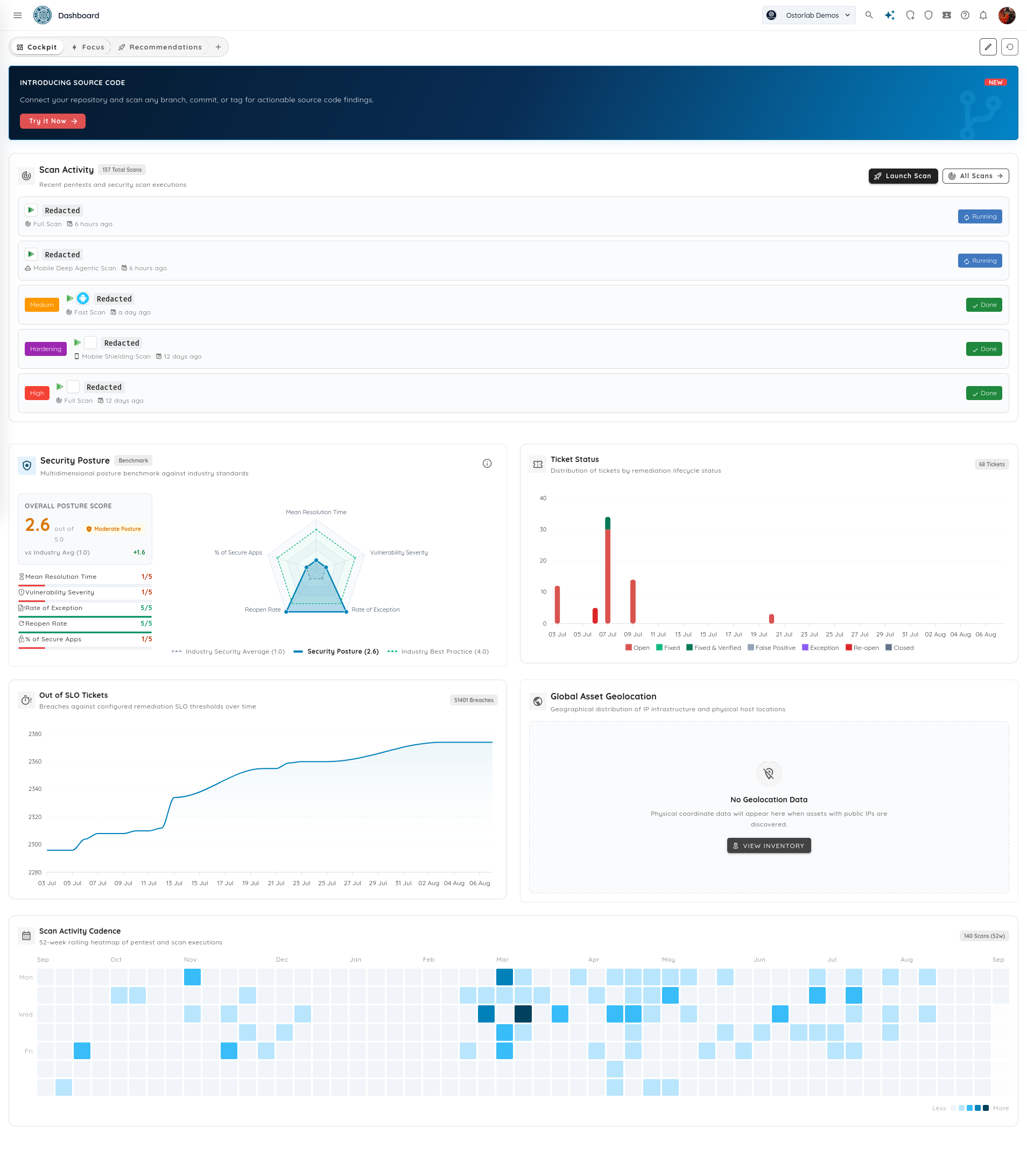
The Cockpit view gives teams a clear overview of overall security health and active scans across all assets.
Key capabilities
- Live Scan Activity Stream: Real-time list of active and completed scans across mobile, web, backend, and source code targets, showing duration and severity tags.
- Security Posture Benchmark: Overall security rating compared with industry standards, with radar charts showing average resolution times, vulnerability severity, and secure app rates.
- Remediation & SLO Health: Live tracking of ticket status and overdue issues.
- 52-Week Scan Cadence Heatmap: Activity heatmap showing testing frequency and release consistency.
- Global Asset Map: Interactive map showing discovered public IP addresses and hosting locations.
Focus Mode: Personalized Action Center
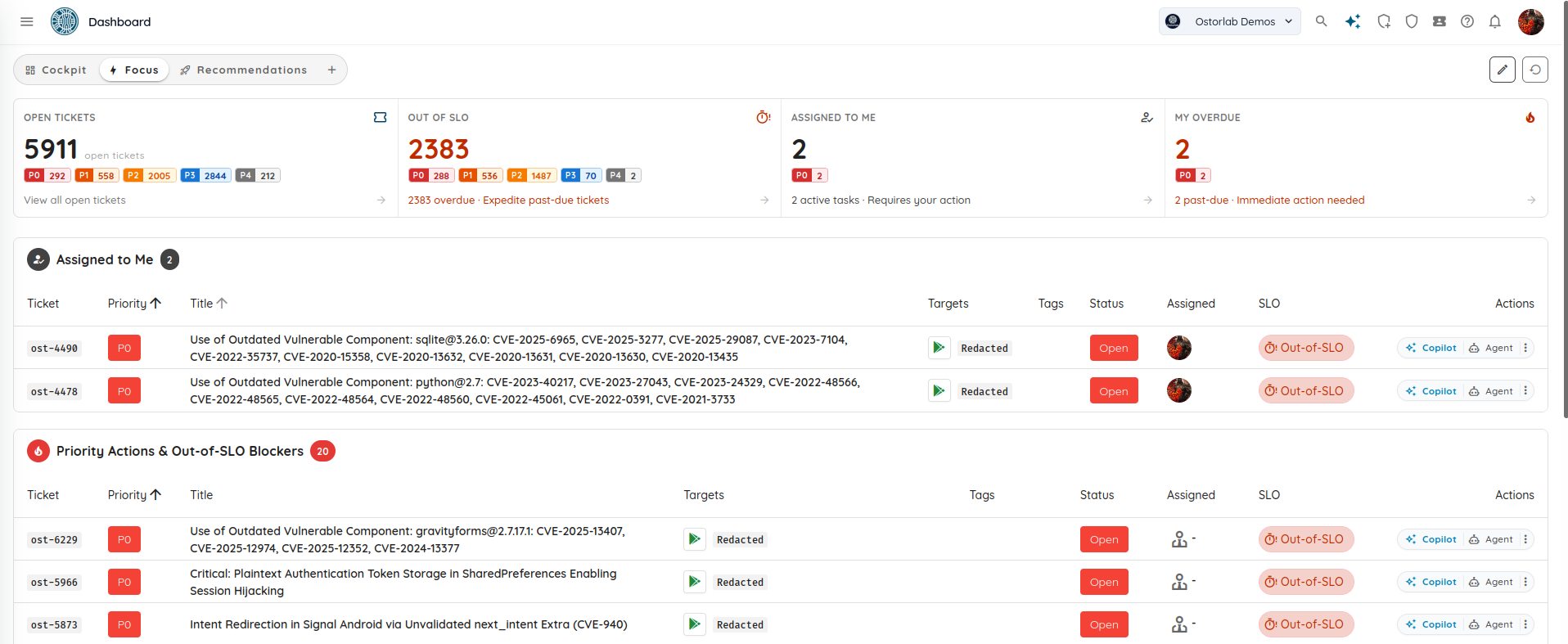
Security engineers and developers often have to dig through hundreds of organization-wide tickets to find their own work. Focus Mode gives each engineer a clear view of their assigned tickets and urgent issues.
Key capabilities
- Personal KPI Counters: Quick counts for tickets Assigned to Me, My Overdue items, open tickets by priority (P0 to P4), and overdue SLA items.
- "Assigned to Me" Table: Direct list of issues assigned to you, with buttons to trigger Copilot AI assistance or automated remediation tools.
- Priority Blockers & Overdue Queue: Highlights critical P0 and P1 issues across the team to help resolve urgent problems quickly.
Custom Dashboards & Starter Templates
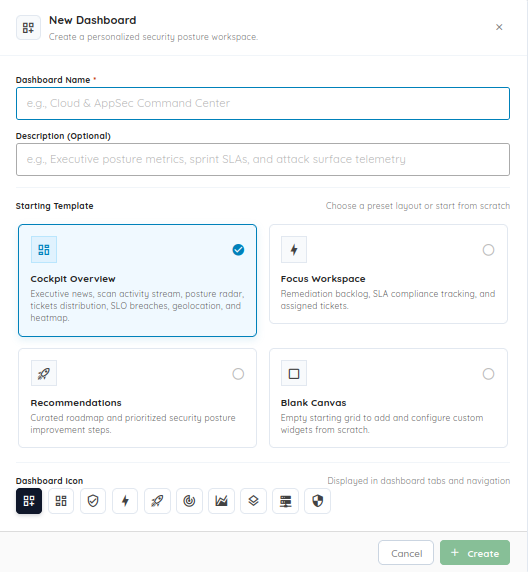
Teams can create custom dashboards tailored to specific roles, teams, or projects.
Key capabilities
- Starting Templates: Create new dashboards from presets like Cockpit Overview, Focus Workspace, Recommendations, or start from a Blank Canvas.
- Custom Names & Icons: Organize dashboards with custom titles and tab icons for easy switching.
- Drag-and-Drop Widgets: Add, rearrange, and remove widgets with simple drag-and-drop controls to show only the metrics and scan feeds your team needs.
2. Keyboard Shortcuts & Fast Navigation
To help teams triage findings quickly without relying on the mouse, Ostorlab now supports keyboard shortcuts for ticket triaging, search, and editing.
Ticket List & Triaging Shortcuts
You can review and update tickets quickly from the list view:
| Shortcut | Action |
|---|---|
↑ / ↓ |
Navigate through ticket rows |
E |
Toggle inline Edit Mode on or off |
O |
Set highlighted ticket status to Open |
F |
Set highlighted ticket status to Fixed |
C |
Set highlighted ticket status to Closed |
X |
Set highlighted ticket status to False Positive |
C (outside edit mode) |
Open Create Ticket modal |
⌘ + Enter / Ctrl + Enter |
Save all modified tickets |
Esc |
Close open modal |
? |
Open the Keyboard Shortcuts Cheat Sheet modal |
Ticket Creation & Form Shortcuts
Enterin Title: Moves focus smoothly from the ticket title to the description field without submitting early.Shift + Enter: Save and create the ticket.⌘ + Shift + Enter/Ctrl + Shift + Enter: Save and immediately open a new ticket form ("Save & Add Another").
Global Search & Navigation
⌘ + /(macOS) orCtrl + /(Windows/Linux): Focus the Global Omni Search bar from anywhere./: Focus the sidebar navigation search.- Breadcrumb Quick-Switcher: Search and jump between active scans and CVE Knowledge Base records from the top navigation bar.
- Scan Step Timeline: Inspect the step-by-step progress of autonomous scans with expandable panels for inputs and outputs.
3. On-Premises Vulnerability Scanner
Many critical systems are not accessible from the public internet. They run inside private networks, behind firewalls, on VPNs, or in staging environments. Standard cloud scanners cannot test these targets without opening firewall rules.
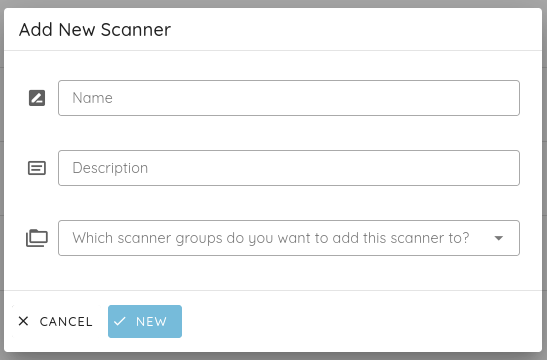
The Ostorlab On-Premises Vulnerability Scanner solves this by letting you deploy lightweight scanner nodes inside your private infrastructure. You get local network access to internal assets while managing scans and viewing results from the central Ostorlab platform.
Key Capabilities
- Internal Reach with Central Control: Scanners run inside your infrastructure to test private targets directly, while sending progress and verified findings to the Ostorlab dashboard.
- Broad Target Support: Scan private IP ranges, internal web tools, private REST/GraphQL APIs, and internal source code repositories.
- Scanner Groups and Load Balancing: Group scanner nodes by region, data center, or team. Scans are automatically distributed across available nodes.
- Fleet Monitoring: Check scanner status, active jobs, hostnames, IP addresses, and real-time CPU, memory, and disk usage from the dashboard.
- Resource-Aware Scheduling: Scans check node resource requirements before starting, preventing heavy scans from overloading smaller hosts.
- Safe Network Pacing: Scanners automatically throttle request rates to avoid overloading sensitive internal services.
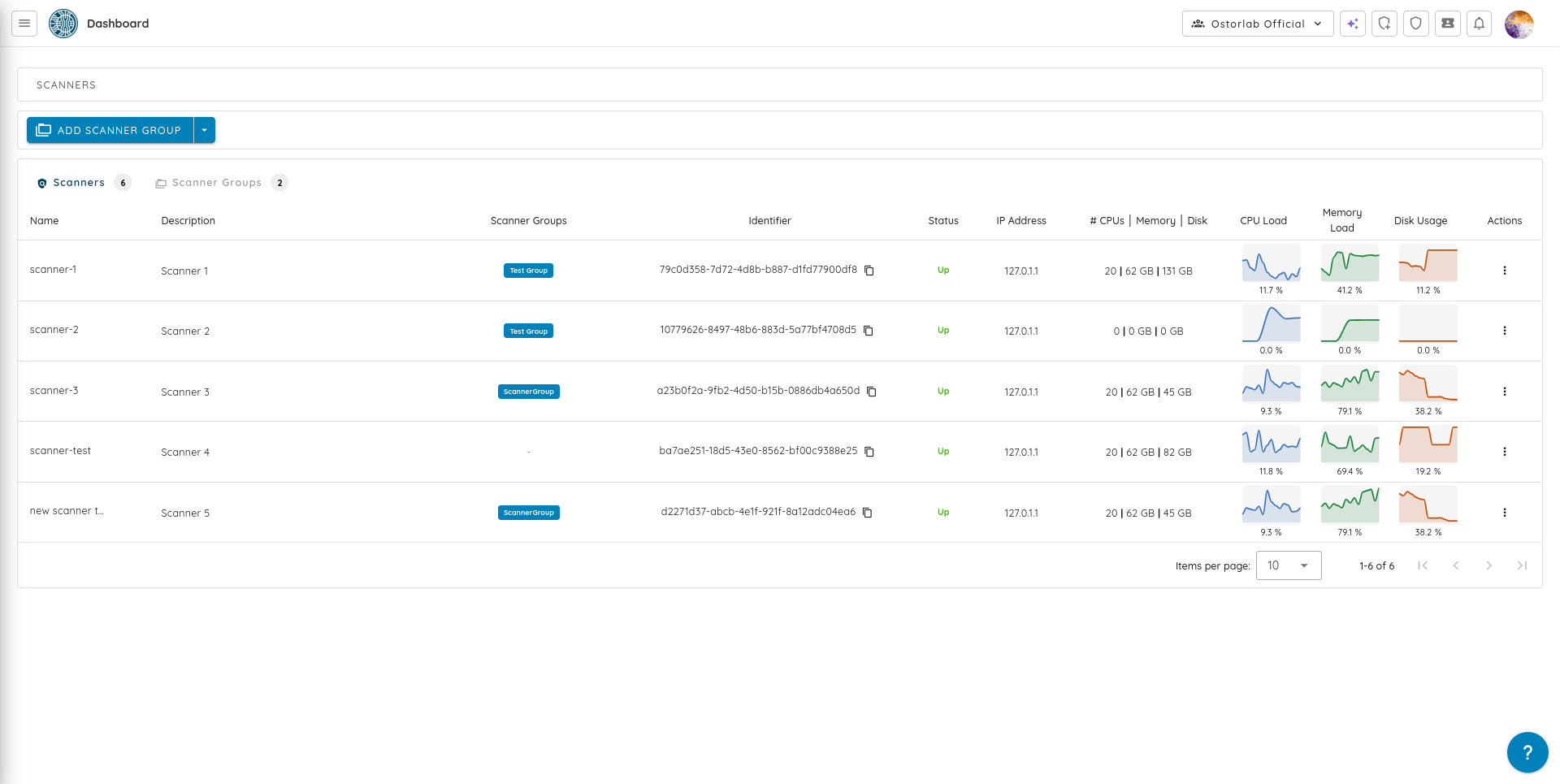
To learn more about deploying scanner nodes, visit the On-Premises Scanning product page and check the On-Premises Scanner documentation.
4. Agentic Scan Knowledge
Most security scanners treat every scan as a separate run. When a scan finishes, they discard everything they learned about the application. On the next run, they spend time rediscovering the same authentication steps, routes, and dead ends.
Agentic Scan Knowledge gives Ostorlab scanners persistent memory across runs. As agents test an application, they save discovered architecture details, valid entry points, and testing notes for future scans.
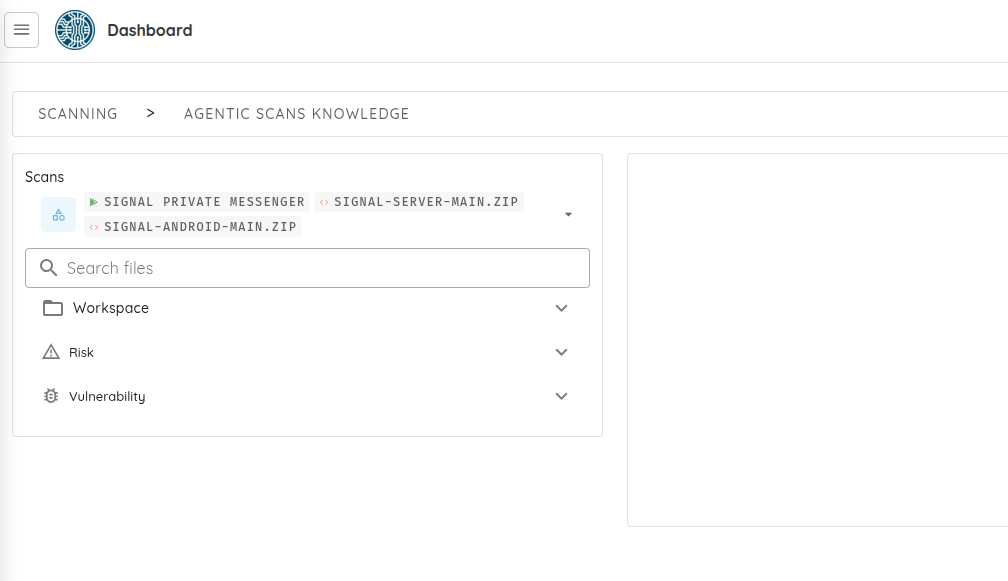
What the Scanner Remembers
- Application Structure: Tech stack details, application architecture, and multi-step login flows.
- Attack Surface: Discovered entry points, API routes, sensitive parameters, and tested paths.
- Testing History: Successful attack paths and verified dead ends.
- Decision Notes: Notes and evidence that guided testing choices and vulnerability decisions.
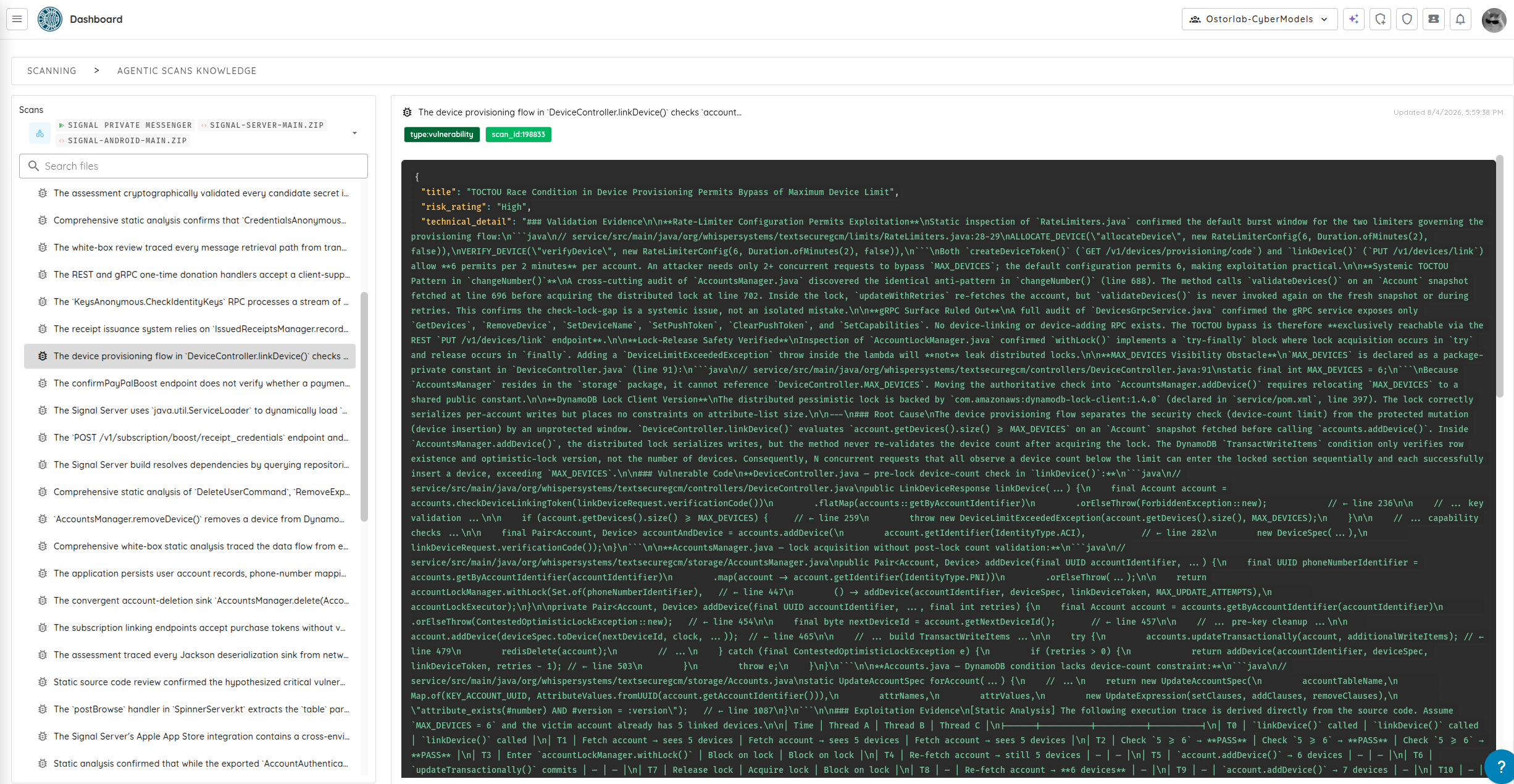
Why It Helps
- Skips Repeated Setup: Future scans do not waste time rediscovering known endpoints and login flows.
- More Time for Deep Checks: Compute and time saved during initial discovery go directly into testing complex business logic.
- Clear Audit History: Keeps a consistent, evidence-backed record of what was tested over time.
To learn more about the architecture and memory model, read How Agentic Scan Knowledge Works.
5. Ostorlab Platform MCP Server
Ostorlab now supports the Model Context Protocol (MCP) through the Ostorlab Platform MCP Server. This lets AI coding assistants and agents (such as Claude, Cursor, and GitHub Copilot) work directly with your security findings.
Instead of exporting PDF reports or copying credentials manually, AI assistants can query vulnerability details, review reproduction steps, and run approved platform actions.
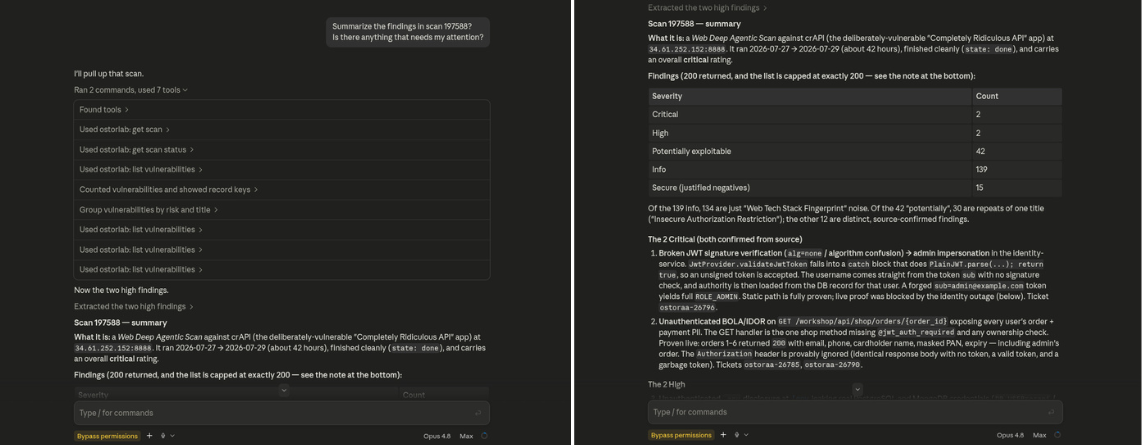
Key Capabilities
- Direct AI Context: AI tools can fetch scan summaries, check open vulnerabilities, search assets, and review fix advice.
- Automated Actions: With proper permissions, AI assistants can create tickets, trigger scans on updated code, or update issue statuses after applying a fix.
- Permission Control: Access is managed through organization API keys with clear permission tiers (
READ,WRITE,ADMIN). - Automatic Secret Redaction: API keys, passwords, session cookies, and tokens are automatically removed from all tool responses.
For setup instructions with Cursor, Claude Desktop, and other MCP clients, see the Ostorlab MCP Server documentation.
6. Multi-Asset Scanning
Real-world attacks often cross different layers of an application. For example, an attacker might inspect a mobile app to find an unlisted API route, exploit an authentication flaw on the web portal, and reach an internal service. Testing each component in isolation can miss these connections.
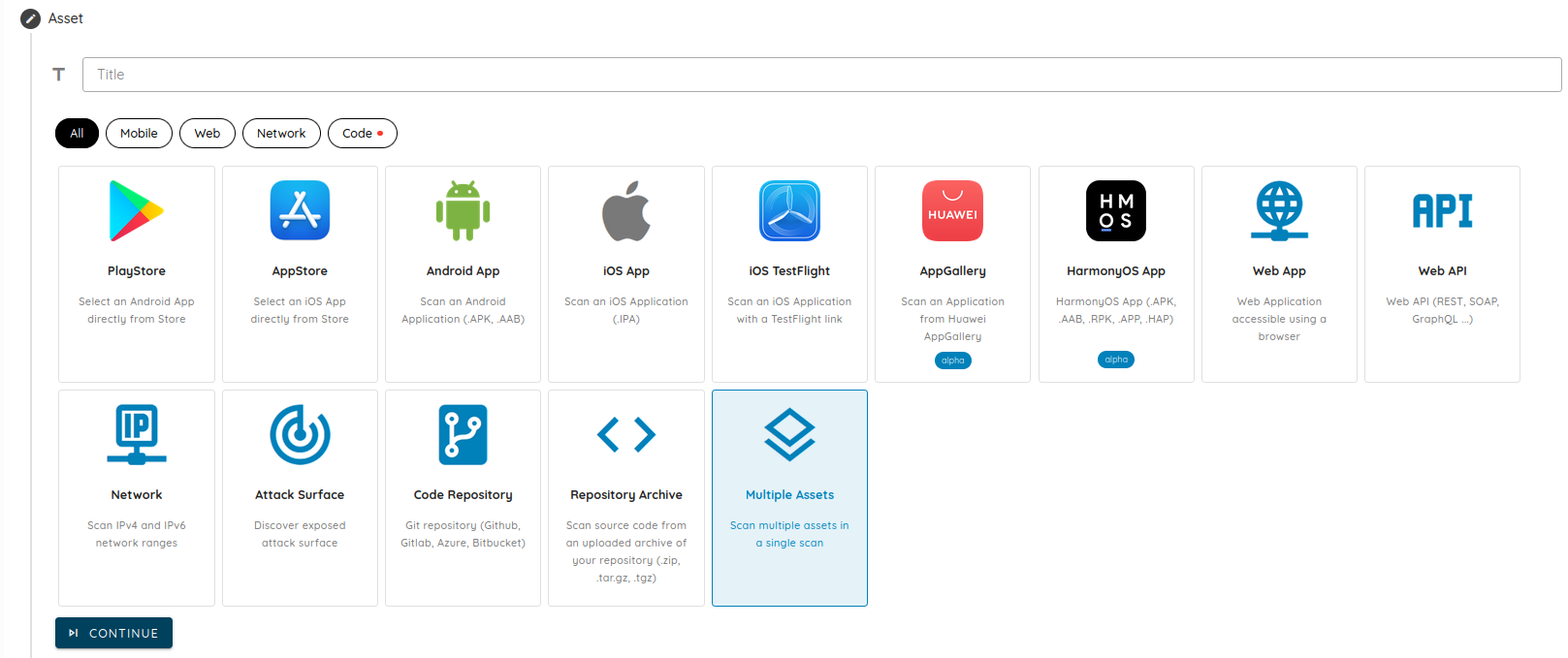
Multi-Asset Scanning allows teams to group different asset types into a single scan with shared settings, synchronized schedules, and one unified report.
Key Capabilities
- Mixed Asset Scope: Combine mobile apps (store listings,
.apk/.ipafiles, TestFlight), websites, APIs (OpenAPI/Swagger schemas), network IP ranges, and source code repositories in one scan. - Shared Settings: Use consistent authentication profiles, AI settings, and scan rules across all targets.
- Unified Report: Review all findings and vulnerability chains across the entire application in a single report.
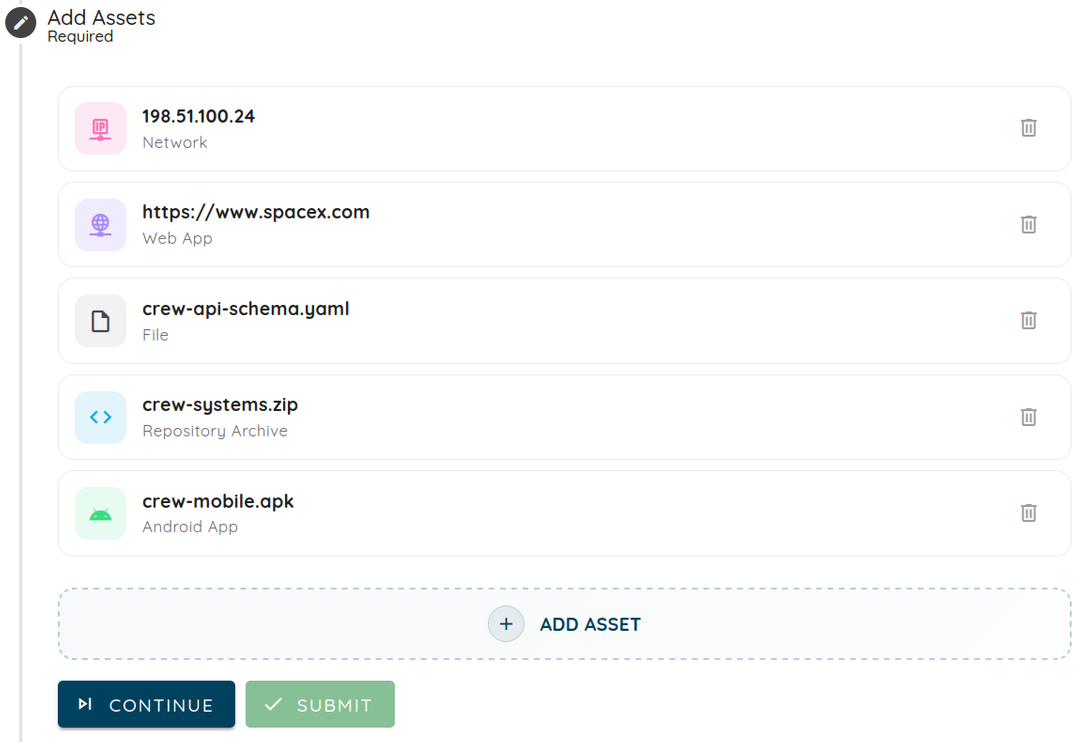
Check out the Multi-Asset Scan tutorial and view the full list of Supported Asset Types.
7. Remediation Streams & Workload Timeline
Managing security fixes across large engineering teams is difficult with a single, flat ticket list.
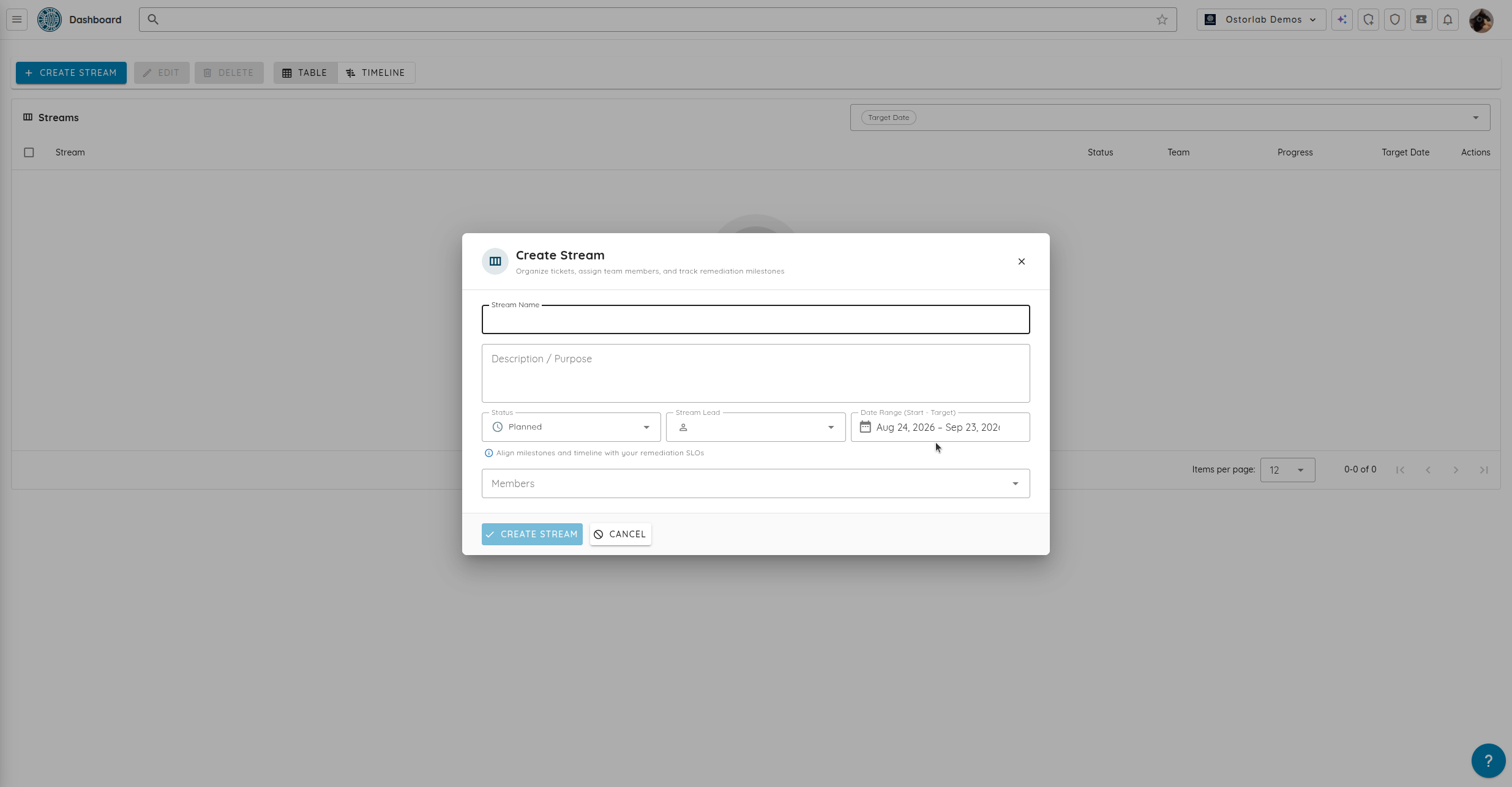
Remediation Streams lets teams organize security tickets into targeted tracks for specific sprints, product releases, or compliance reviews (such as SOC 2 or DORA).
Key Capabilities
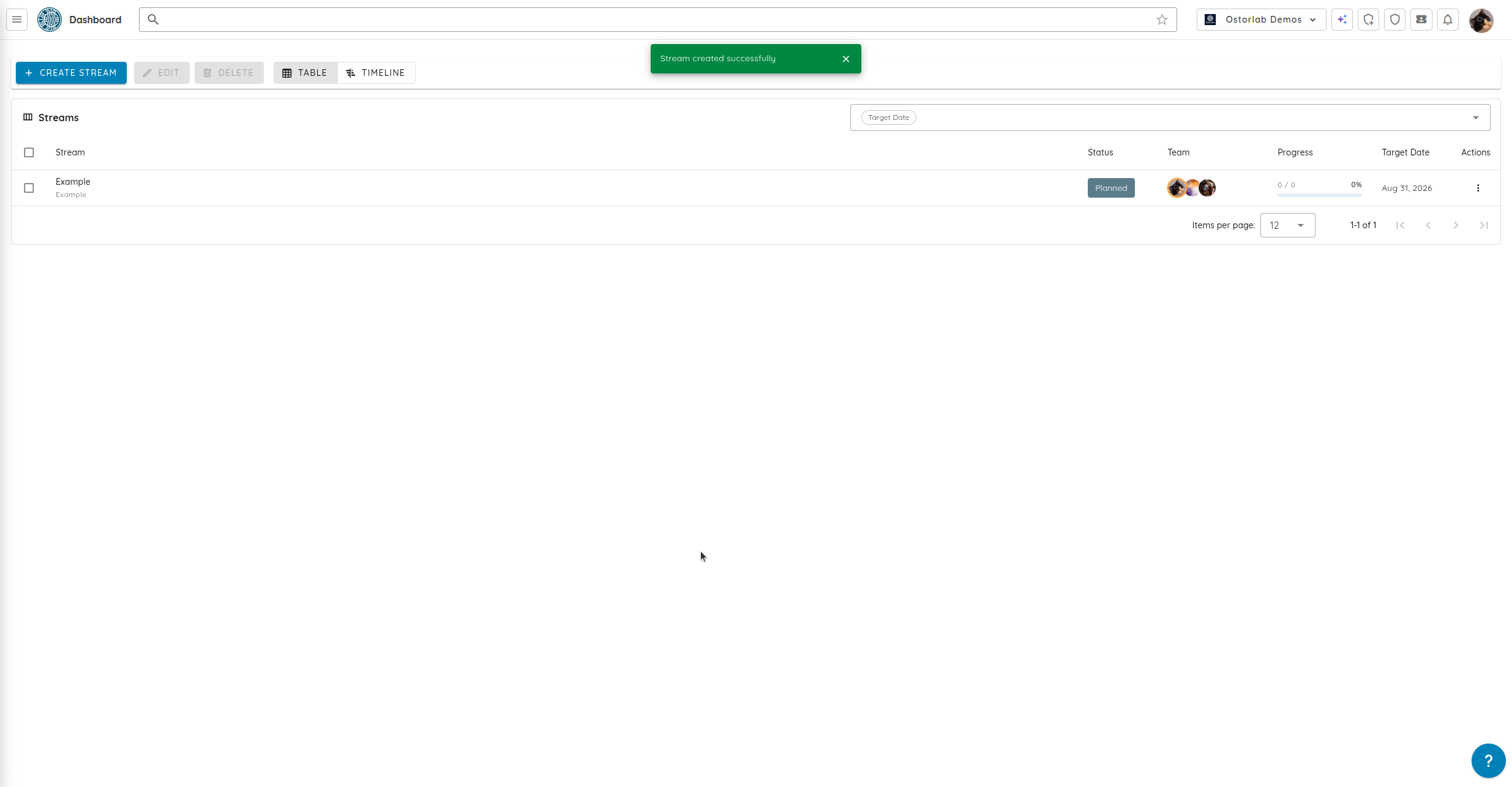
- Stream Organization: Create streams for specific development sprints, releases, or compliance audits.
- Clear Ownership: Assign stream leads and team members so every issue has a clear owner.
- Workload Tracking: Progress bars show open workload, completion rates, and days left until target dates.
- Interactive Timeline: View streams on a visual Gantt-style timeline to catch schedule delays early.
To learn more about organizing your remediation tracks, see the Remediation Streams documentation.
8. Risk Reruns for Agentic Deep Scans
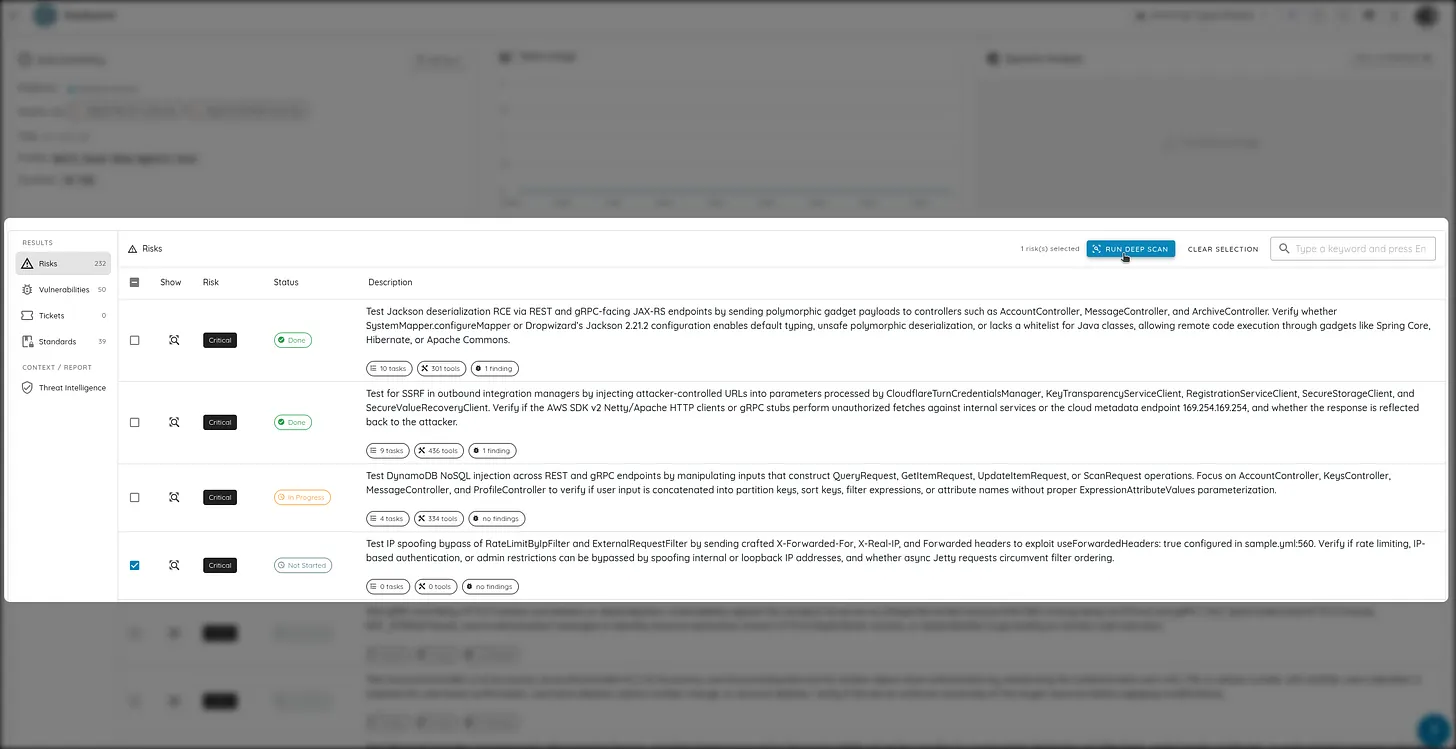
In Ostorlab's Agentic Deep Scan architecture, a risk represents an autonomous test for a specific vulnerability type (such as an IDOR, hardcoded secret, JWT issue, or privilege escalation).
Risk Reruns lets security engineers re-run individual risk checks on demand without having to run a full multi-hour scan from the beginning.
Key Capabilities
- Targeted Selection: Pick up to 100 specific risks to re-run directly from the scan dashboard.
- Adjustable Parameters: Select different AI models (Cyber Models or BYOK), increase token allocations, or raise effort levels for complex checks.
- Resume Paused Runs: Quickly re-run checks that timed out or paused without re-uploading files.
- Merged Reports: New findings and evidence automatically update the original scan report.
For details on configuring AI engine allocations, see the Cyber Models overview and BYOK documentation.
9. Source Code Scanning: Archives, Fast Scan & Single Vulnerability Assessment
This release introduces three key updates to source code security scanning:
Source Code Archive Uploads
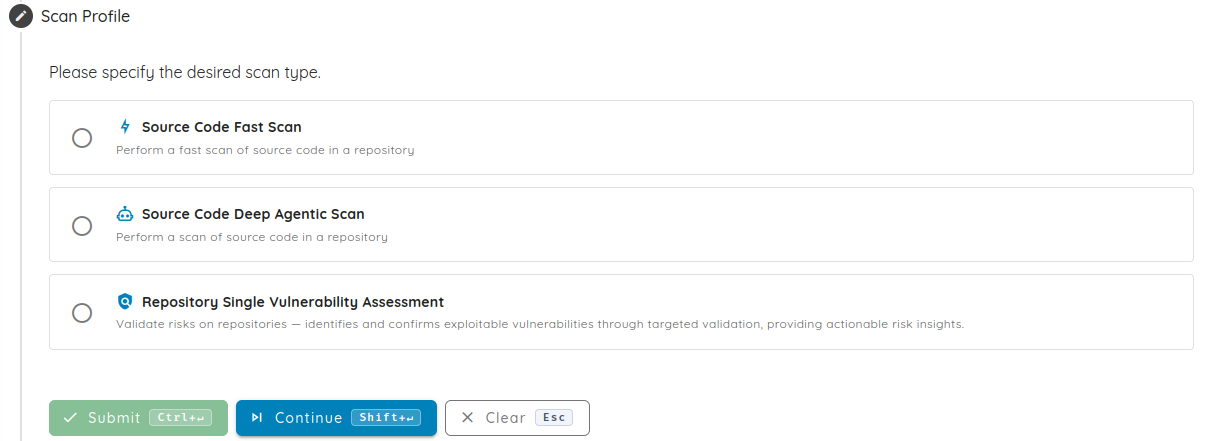
In addition to connecting Git repositories (GitHub, GitLab, Bitbucket, Azure DevOps), you can now upload code directly as .zip or .tar.gz archives. This enables security testing for air-gapped repositories, offline codebases, and packaged release bundles.
Source Code Fast Scan Profile
For CI/CD pipelines that need quick feedback, the Source Code Fast Scan profile runs static analysis in a few minutes, flagging secrets, common bugs, and configuration issues before code is merged.
Single Vulnerability Assessment (SVA) for Repositories
Teams can now run targeted Single Vulnerability Assessments (SVA) against connected repositories and code archives. SVA focuses testing on a single vulnerability type or confirms that a bug was fixed without running a full scan.
Learn more about source code testing in the Source Code Scan tutorial and Scan Profiles guide.
10. Threat Center EUVD Support
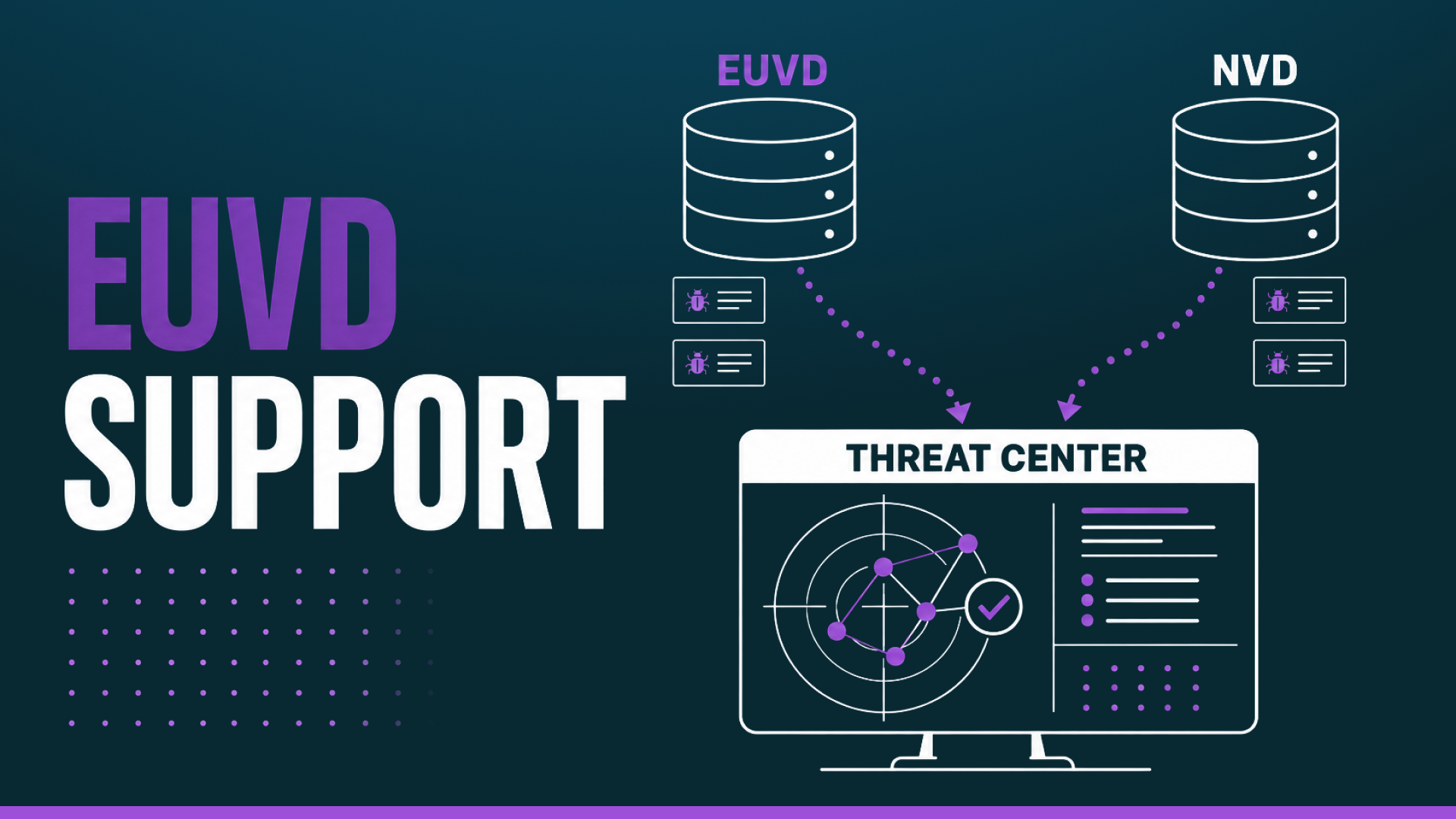
The Ostorlab Threat Center now ingests vulnerability feeds from the European Vulnerability Database (EUVD) maintained by ENISA, alongside existing National Vulnerability Database (NVD) intelligence.
Key Capabilities
- Combined Vulnerability Intelligence: Uses data from both NVD and EUVD, including European coordinated disclosures, active exploit data, and vendor fixes.
- EU Cyber Resilience Act (CRA) Readiness: Helps software teams track and prioritize vulnerabilities to meet CRA notification deadlines (24-hour early warning and 72-hour full notifications).
- Exposure Checks: Quickly see which of your digital assets may be affected by new vulnerabilities and trigger targeted scans to verify exposure.
Learn how to monitor exposed assets in the Attack Surface Monitoring guide.
11. New Integrations & Expanded AI Model Support
This release also brings new platform integrations and expanded AI model choices:
Linear Ticketing Integration
Ostorlab now connects directly with Linear. Security findings sync into Linear projects with severity ratings, steps to reproduce, and automatic status updates when vulnerabilities are resolved.
Expanded BYOK & Model Providers
- New AI Providers: Added support for Fireworks AI and Self-Deployed Google Vertex AI endpoints.
- Model Upgrades: Upgraded default scanning model to Gemini 3.7 Flash, and added support for Gemini 2.5 Pro, GLM 5.3, DeepSeek V4 Pro, Qwen 3.8 2.7T, and Grok 4.6.
Follow the Linear Integration guide to connect your workspace, and see the Recommended AI Models guide for model benchmarks and BYOK setup.