Choose the Hours Your Scans Run In
Choose the hours and days your Ostorlab scans may run. Scans wait outside the window; scans that support pausing resume in the next window until complete.
Choose the hours and days when your Ostorlab scans run. A scan created outside its execution window waits; a running scan that supports pausing resumes in the next window until it finishes. Scans that cannot pause continue running after the window closes.
The problem
A security scan is real traffic. A web or API scan sends thousands of requests to your application, fills in forms, and follows every link it can find. That is how it finds problems, and it is also why the time it runs matters.
Some hours are the wrong time for a scan. Your users are busy, your team is deploying, or a test environment is shared with people who need it during the day. A scan that starts at the wrong moment competes with all of that.
Scheduling a start time solves only part of the problem. A long scan may still run into the next busy period. An execution window also controls when a scan that supports pausing stops and resumes.
How does the scan execution window work?
Every scan can now have an execution window: the hours, and the days, it is allowed to run in. Outside the window, the scan waits. When the window opens, it runs. When the window closes, it pauses, and it continues in the next window until it finishes.
The window is optional. A scan without one runs at any time, as before.
Add it when you create the scan. The Execution window step is the last step of the New Scan form, for every scan type. Pick one of the suggestions:
- Overnight: 20:00 to 06:00, every day;
- Weekday evenings: 18:00 to 08:00, Monday to Friday;
- Working hours: 09:00 to 18:00, Monday to Friday.
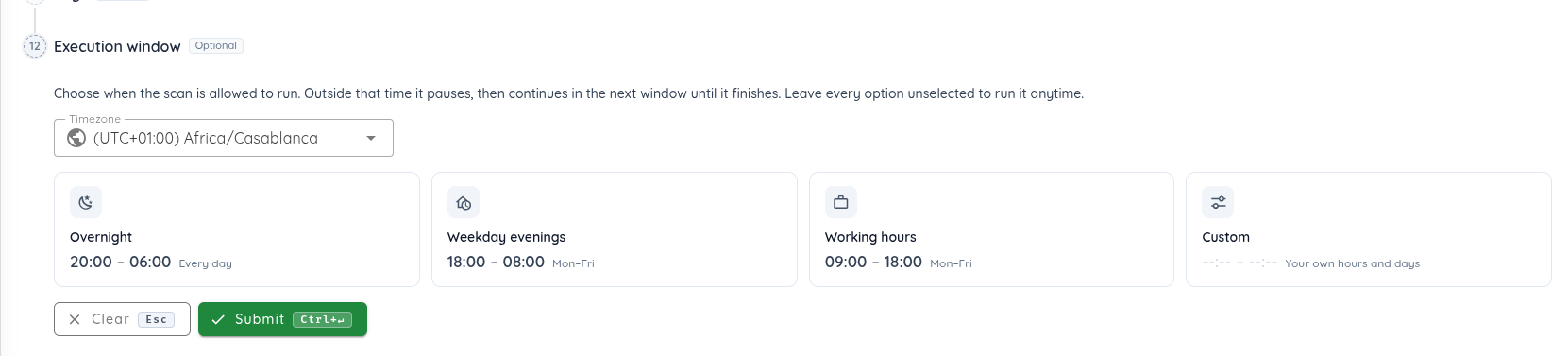
Use your timezone. The hours are local times in the timezone you choose. The timezone selector defaults to your browser’s timezone, and you can search the list by city, country or UTC offset.
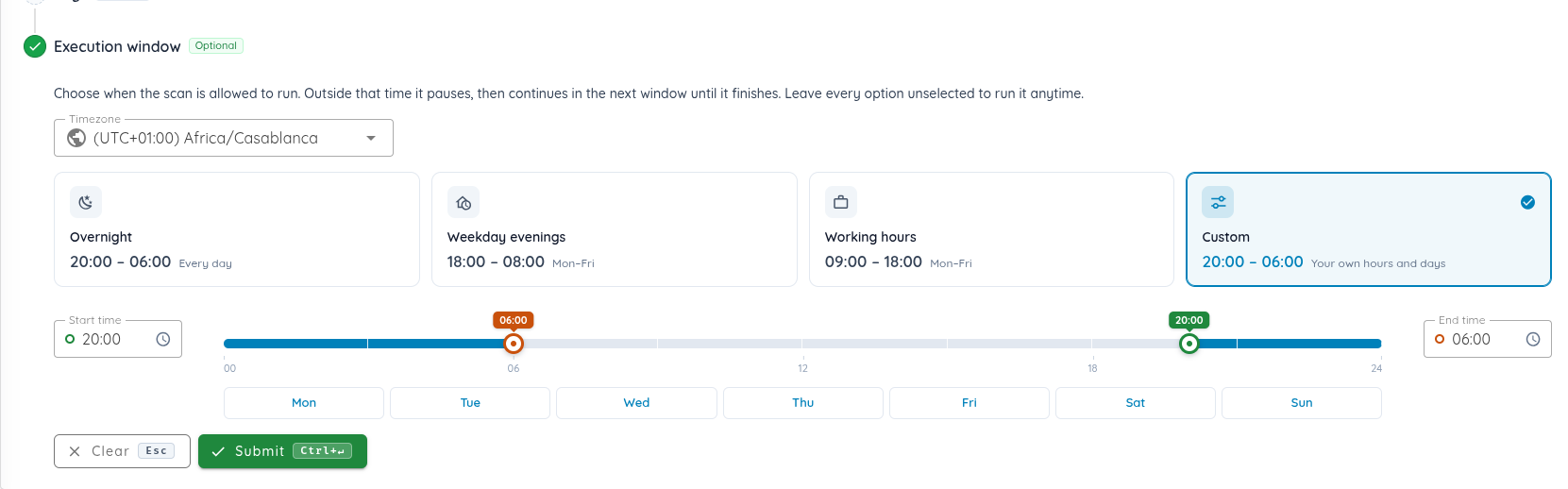
Or set your own hours. Click Custom, then type the start and end times or drag the two handles on the 24-hour bar. The blue part of the bar shows when the scan may run. A window can cross midnight: 20:00 to 06:00 runs from 20:00 until 06:00 the next morning.
Choose the days. Pick the days the window starts on. Leave the days unselected to run the window every day.
What happens when the window opens or closes?
- A scan created outside its window waits, and starts when the window opens.
- When the window closes, the running scan pauses. It continues from where it stopped when the next window opens, until it finishes.
- A scan that cannot be paused keeps running after its window closes, until it finishes.
- A rescan runs in the same window as the original scan, so you set it once.
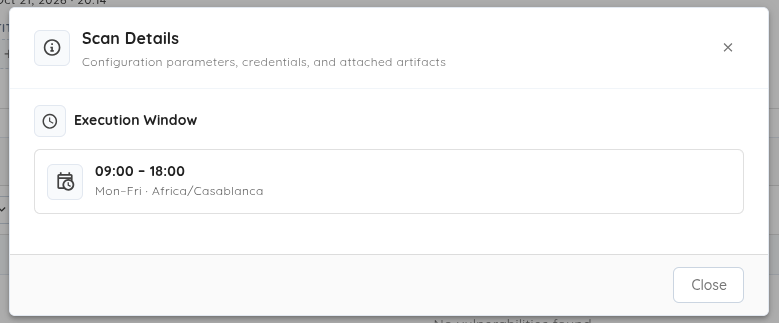
To check the window of a scan, open the scan and click Details in the Scan Summary. The Execution Window section shows the hours, the days and the timezone.
Ask Copilot or your AI assistant
You don't have to fill in the form. Ask Copilot to create a web, network or mobile scan, and tell it when the scan may run: for example, "scan shop.example.com overnight, Monday to Friday, Paris time". It creates the scan with that execution window.
The same works from your own AI assistant through the Ostorlab MCP server: every scan it creates can have an execution window, and a rescan it starts keeps the window of the original scan. If you create scans from a script, the Ostorlab API takes the window too.
Why add a scan execution window?
- Keep scans away from your busy hours. Run them overnight, on weekday evenings, or whenever your application is quiet.
- Share test environments. Let a scan use a staging environment only when your team is not using it.
- Stop babysitting long scans. Create the scan when it suits you; it waits for its window, pauses when the window closes, and finishes over as many windows as it needs.
- Set it once. Rescans keep the window, and the scan details always show it.
The full execution window guide walks through every step.
Frequently asked questions
What is a scan execution window? The hours and days a scan is allowed to run in. Outside them, the scan waits or pauses, and it continues in the next window until it finishes.
Which scans support it? Every scan type. A scan that cannot pause continues after the window closes until it finishes. The Execution window step is the last step of the New Scan form.
What happens if I create a scan outside its window? It waits, and starts when the window opens.
Does a paused scan start over? No. It continues from where it stopped when the next window opens.
Can a window cross midnight? Yes. When the end time is earlier than the start time, the window ends on the next day. For example, 20:00 to 06:00 runs from 20:00 until 06:00 the next morning.
Do rescans keep the window? Yes. A rescan runs in the same window as the original scan.
How do I remove the window? Click Clear in the Execution window step before you submit the scan, and it runs at any time.
Need help choosing a window for your scans? Email support@ostorlab.dev.