Precheck: Know Your Mobile Scan Will Work Before It Runs for Hours
Precheck verifies that a mobile app installs, launches, logs in and runs its UI prompts on a real device. When a blocker such as rejected credentials, a crash or a build that cannot be installed stops coverage, the scan is marked as an error with the reason and the screen that shows it.
A mobile scan that finds nothing should mean the app is secure. Too often it means the app never got past its login screen.
Precheck is a new step in Ostorlab mobile scans. It runs in all mobile dynamic scans, installs the app on a real device, launches it, logs in with your credentials, and runs your UI prompts. If a blocker gets in the way, such as a build that cannot be installed, an app that crashes or freezes, or rejected credentials, the scan is marked as an error, and you get the reason and the screen that proves it.
The scan keeps running in the background, so you still get static analysis results and whatever dynamic coverage a partially working app allows.
What does Precheck do? (TL;DR)
Precheck confirms that the app can actually be tested. When a blocker stops it, Precheck marks the scan as an error and adds a Learn more link to the UI call graph, where each screen is colored by status. Static analysis and any reachable dynamic coverage still finish.
Why an empty report is the worst report
A full mobile scan runs several analyses in parallel: static analysis, dynamic analysis, call traces and traffic interception. Together they can take hours. Dynamic coverage depends on one thing: the app has to actually run and be usable on the device.
When it isn't, the scan still "completes":
- The build targets an architecture the device does not support, so it never installs.
- The app crashes on its splash screen, or freezes.
- The staging password expired last week, so every authenticated screen stays out of reach.
- A 2FA step was not configured, so the app waits forever for a code.
- The staging backend is down, so the app shows "Unable to connect" and does nothing else.
In each case the dynamic analysis explores what it can and reports little or nothing. A quiet report from a broken run looks the same as a quiet report from a secure app. You find out hours later, if at all.
In a CI/CD pipeline, a pipeline that passes for the wrong reason is worse than one that fails.
Precheck is built to remove that ambiguity.
What Precheck checks
Precheck runs two checks in order. If the app cannot be installed, the UI check is skipped.
1. Does the build install on the device?
Precheck takes a real device, resets it to a clean state and installs your build. It doesn't stop at "the installer said OK". It also confirms the app is actually present on the device:
- Android (APK, AAB, XAPK): the package must appear in the device's installed package list. Precheck also reads the app's launch activity from the binary. For XAPK bundles, it searches every split APK until it finds the base one.
- iOS (IPA): the bundle must appear in the device's installed applications. Precheck reads the bundle's
Info.plistand checks the bundle identifier, the minimum iOS version and the required device capabilities against the device.
A build that cannot be installed is reported as an error: no dynamic analysis can work without it, but static analysis still runs.
2. Does the app launch, log in and follow your prompts?
Precheck then hands the app to Monkey Tester, Ostorlab's AI agent for driving mobile UIs. It passes:
- the device to use,
- the credentials you configured (login and password, custom key/value fields, and SMS, email, TOTP or manual 2FA),
- your UI prompts, the plain-language instructions you give the scan, such as "accept the terms, skip onboarding, open the transfers page".
Monkey Tester launches the app, logs in and works through each prompt. It doesn't just take screenshots: it judges every screen it reaches.
Every screen gets a verdict
For each screenshot, Monkey Tester returns four pieces of information:
| Field | Meaning |
|---|---|
prompt |
Which of your prompts it was working on when it took the screenshot, if any |
status |
ONGOING, SUCCESS, ERROR or CRITICAL |
reason |
What on the screen led to that status |
remediation |
What you can do about it, for ERROR and CRITICAL |
- ONGOING: the step is in progress and nothing is wrong yet.
- SUCCESS: the prompt was completed, and the result is visible on screen.
- ERROR: the prompt failed (for example, a disabled button, or a transfer that did not go through), but the app still works.
- CRITICAL: a real blocker. The credentials you provided were rejected, or the app keeps crashing or is frozen.
Each screen is marked with its status, so you can see at a glance what works and what doesn't, and every status comes with the specific reason behind it and how to remediate it.
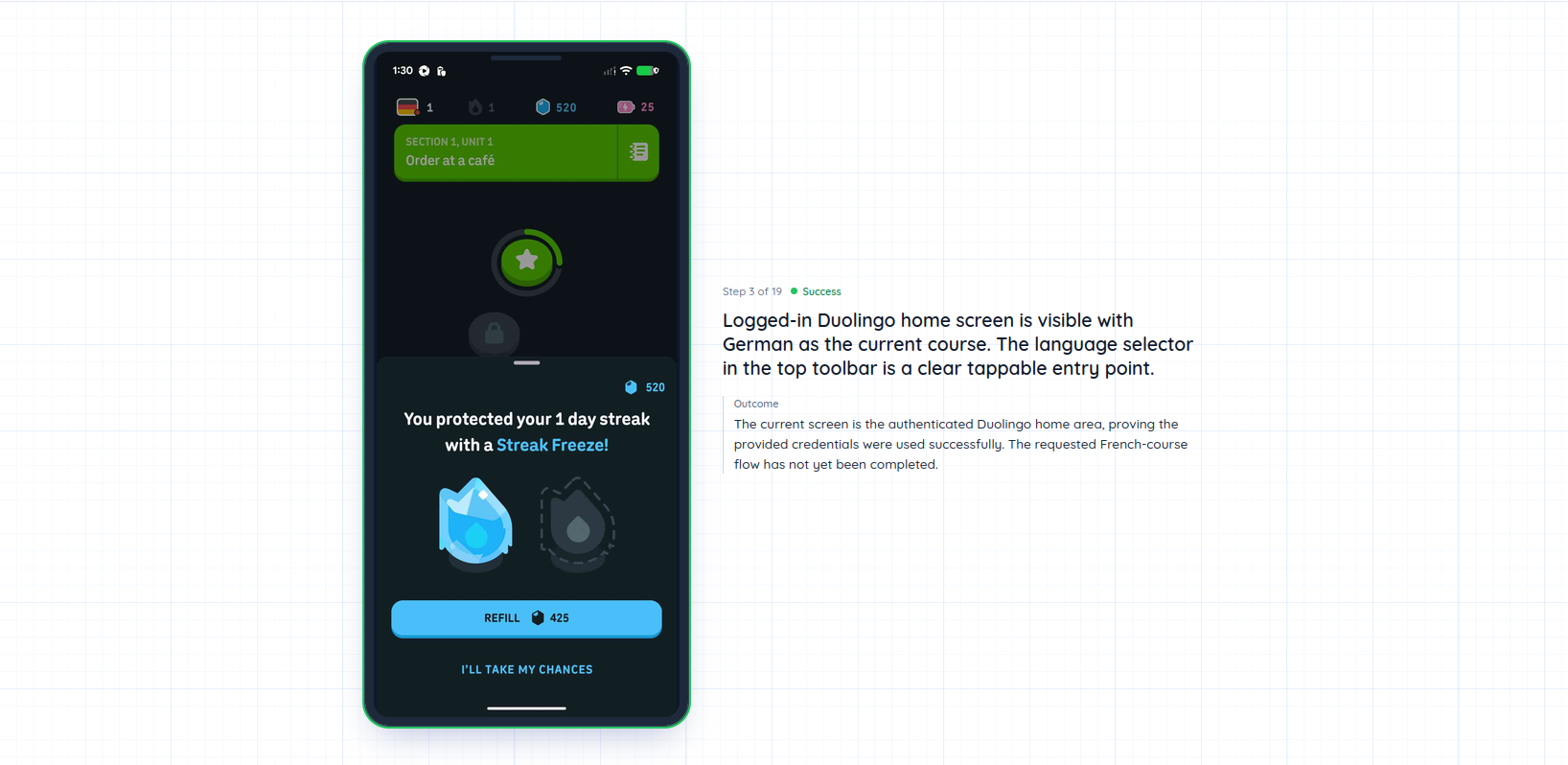
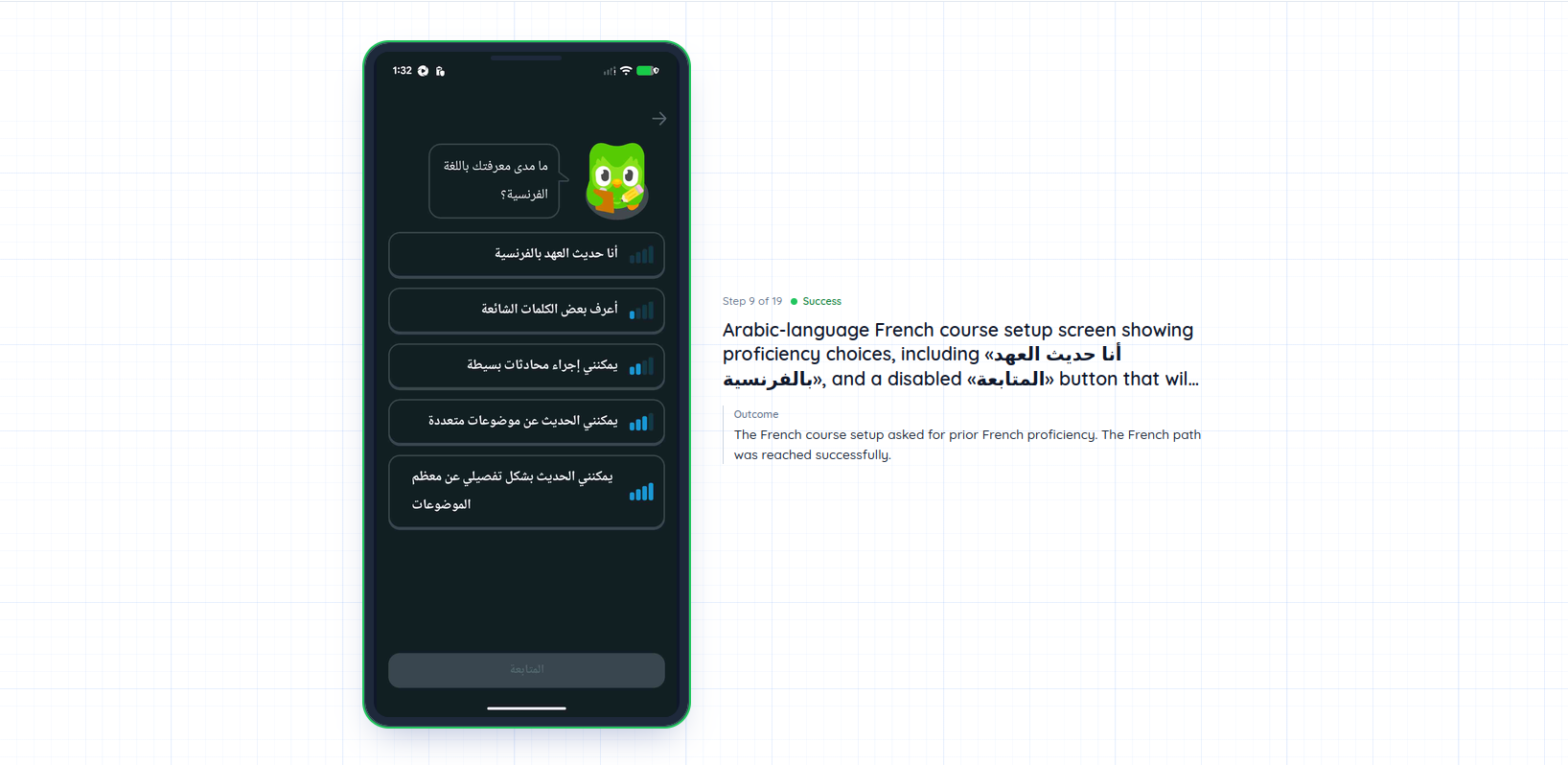
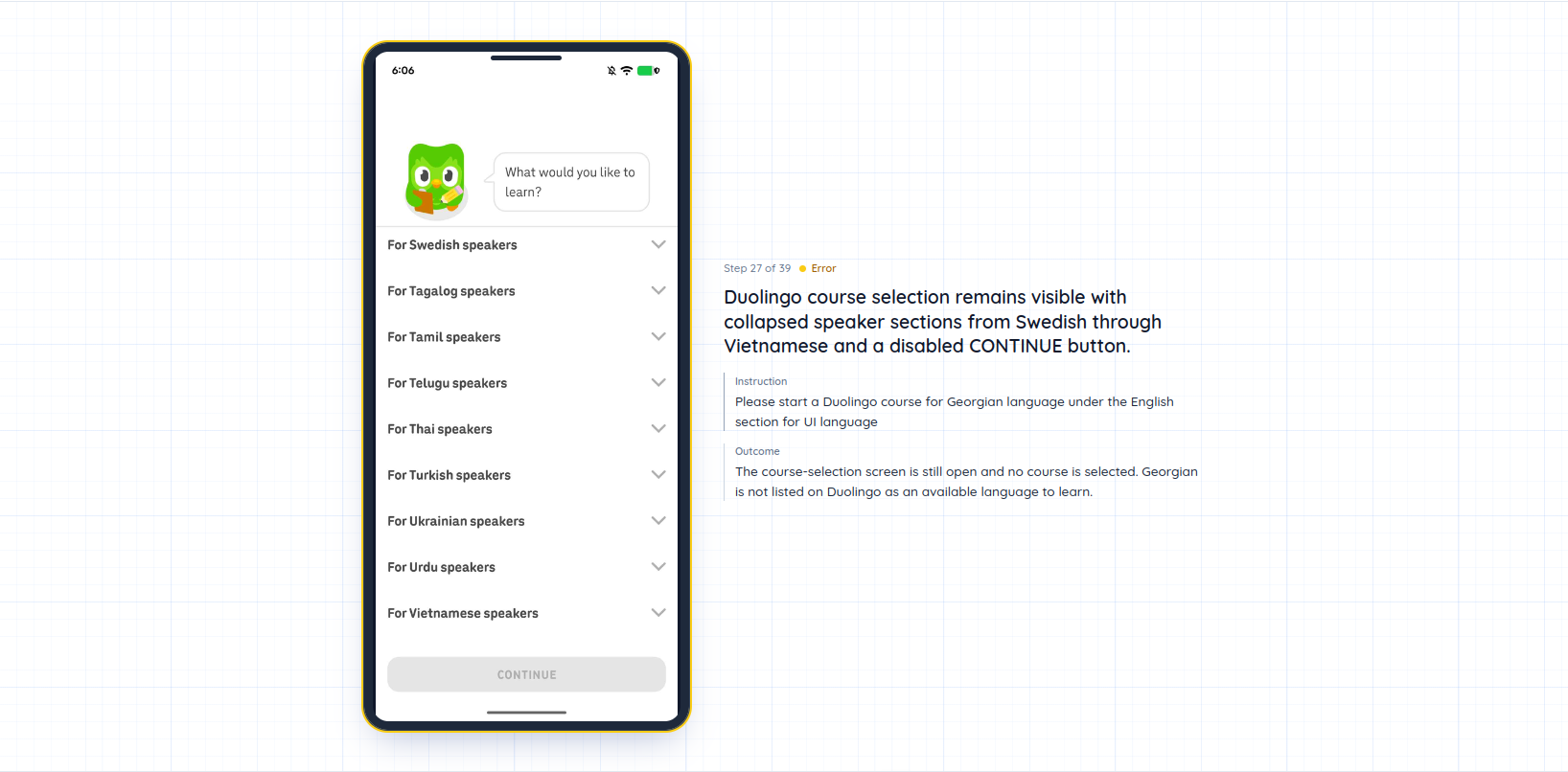
Here is what this looks like on a scan of Duolingo, where the UI prompts asked Monkey Tester to start a French course, then a Georgian one.
SUCCESS: login. Monkey Tester reaches the home screen, which proves the credentials work.
SUCCESS: a prompt completed. The French course setup screen is open, so the prompt is marked as done.
ERROR: a prompt that cannot be completed. Georgian is not offered on Duolingo, so the prompt fails. The app still works, so this is an ERROR, not a blocker.
CRITICAL: rejected credentials. The app shows "Wrong username or password", so nothing behind the login can be tested.
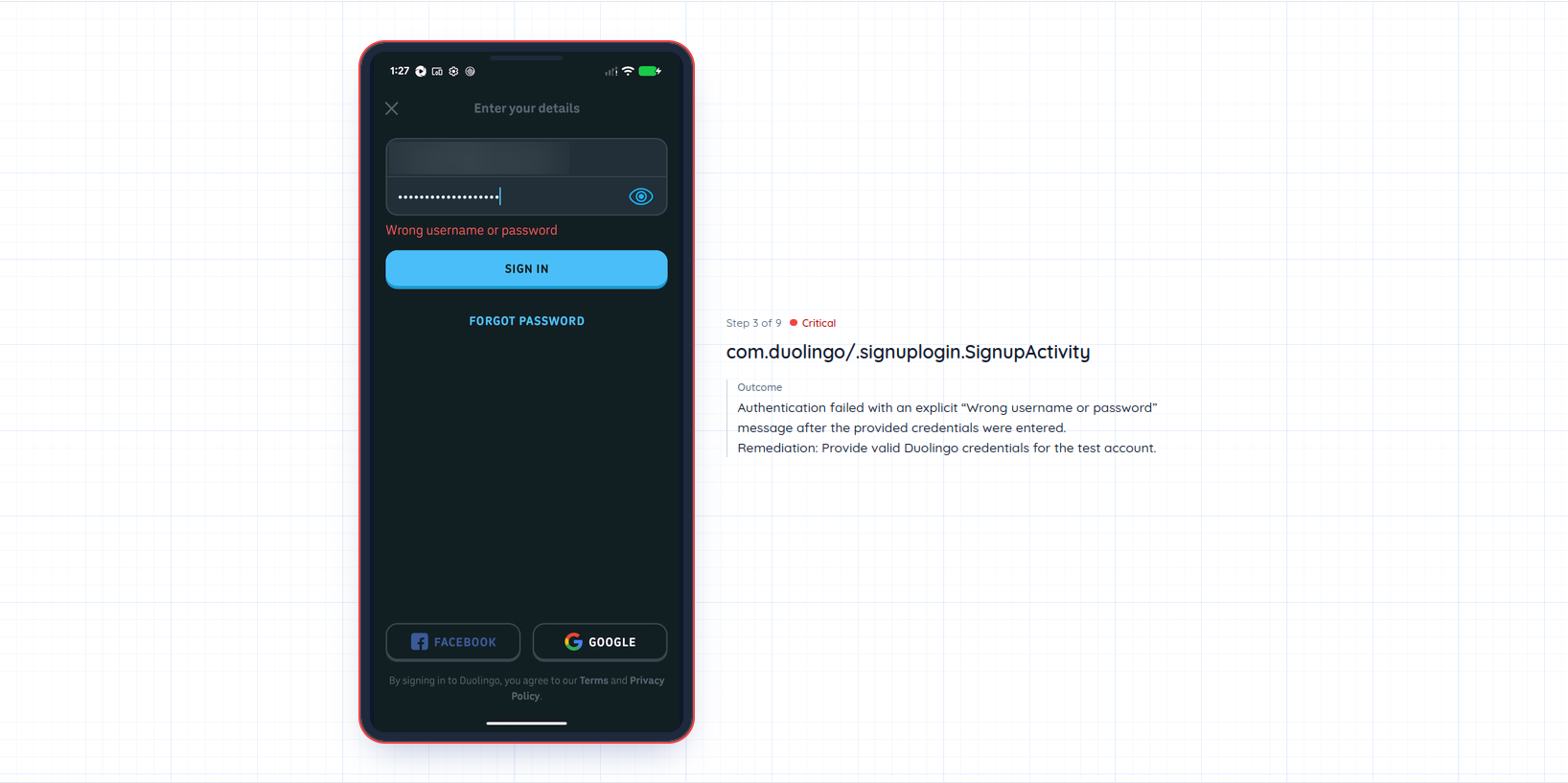
The reason describes what went wrong on your side, such as an error message, a rejected password or a missing permission. A real example ends with the fix itself:
Authentication failed with an explicit 'Wrong username or password' message after the provided credentials were entered. Remediation: Provide valid Duolingo credentials for the test account.
What you see when Precheck fails
When a scan is marked as an error, the scan page shows why, with a Learn more button that opens the UI call graph at the screen that failed. The UI call graph is the map of every screen Monkey Tester reached and the transitions between them, with each screen colored by its Precheck status.
Under the hood: how Precheck is built
Precheck runs as its own lightweight step: Monkey Tester judges each screen, and Precheck makes the final call on whether the scan is marked as an error.
A dedicated step, not more work for every analysis
The obvious shortcut was to add health checks to each dynamic analysis. We chose not to, for two reasons.
- Speed of the first answer. Deep dynamic testing needs a full device preparation, such as setting up traffic interception. None of that is needed to answer "does this app start?", so Precheck skips it. The app is the only thing under test.
- One place for the decision. If every analysis detects failures on its own, you get conflicting verdicts. A dedicated step gives one clear answer.
Precheck therefore runs as its own lightweight step, alongside the rest of the scan.
The model judges, the code decides
Monkey Tester's model was already deciding what to tap next. We extended it so that, for each step, it also returns the prompt it is working on, a status, a reason and a remediation.
The model is instructed to:
- reserve
CRITICALfor explicit blockers, - report login failures only when credentials were actually provided,
- write each reason as a fix, for example "set the SMS 2FA number" rather than "2FA required".
The model gives a verdict for each screen. The decision to mark the scan as an error is made by Precheck from all of those verdicts together, so a single misread screen cannot flag a scan that is clearly making progress.
Evidence first, verdict second
Every screen Monkey Tester visits is saved, with its screenshot, status, reason and linked UI prompt, before Precheck makes its decision. So when a scan is marked as an error, the evidence is already in place, and the "Learn more" link always opens a complete call graph.
These verdicts are also available through Ostorlab's API and MCP tools, so AI coding assistants connected to Ostorlab can explain why a precheck failed.
Getting the most out of Precheck
Most precheck errors come from the scan setup, so three inputs matter most: credentials, UI prompts written as goals, and 2FA configuration.
- Provide credentials for any app with a login. Precheck can then check them before the rest of the scan relies on them.
- Write UI prompts as goals, such as "open the account settings page", rather than coordinates or exact tap sequences. Precheck marks a prompt as successful when the goal is visible on screen.
- Configure 2FA (TOTP secret, SMS or email inbox) if your login requires it. An unanswered 2FA screen is treated as a blocker.
- In CI/CD, treat a precheck error as a failed pipeline step. The error message tells you what to fix before you run the pipeline again.
A scan that ran is the only scan worth trusting
A security scan is only worth its findings if it actually ran. Precheck verifies a scan can run, using a real device, the app's actual screens and your own credentials and prompts. When it cannot, the scan is marked as an error and you get the reason, a suggested fix and the screen that shows the problem, instead of a quiet report several hours later.
Meanwhile, the scan keeps going and delivers every result it can.
Precheck runs in all Ostorlab mobile dynamic scans for Android and iOS. To use it, start a mobile scan with your build, test credentials and UI prompts, and Precheck runs automatically. See the mobile scan prerequisites for setup.